
If you want to connect Explodely with other apps like Google Sheets, Mailchimp, or thousands more, the integration with Pabbly Connect makes it incredibly simple. With this integration, you can automate your tasks and create smooth workflows between Explodely and your favorite tools.
Follow the step-by-step guide below to set up the integration and start automating your processes.
I. Create a Workflow in Pabbly Connect
1. Log in to your Pabbly Connect account.
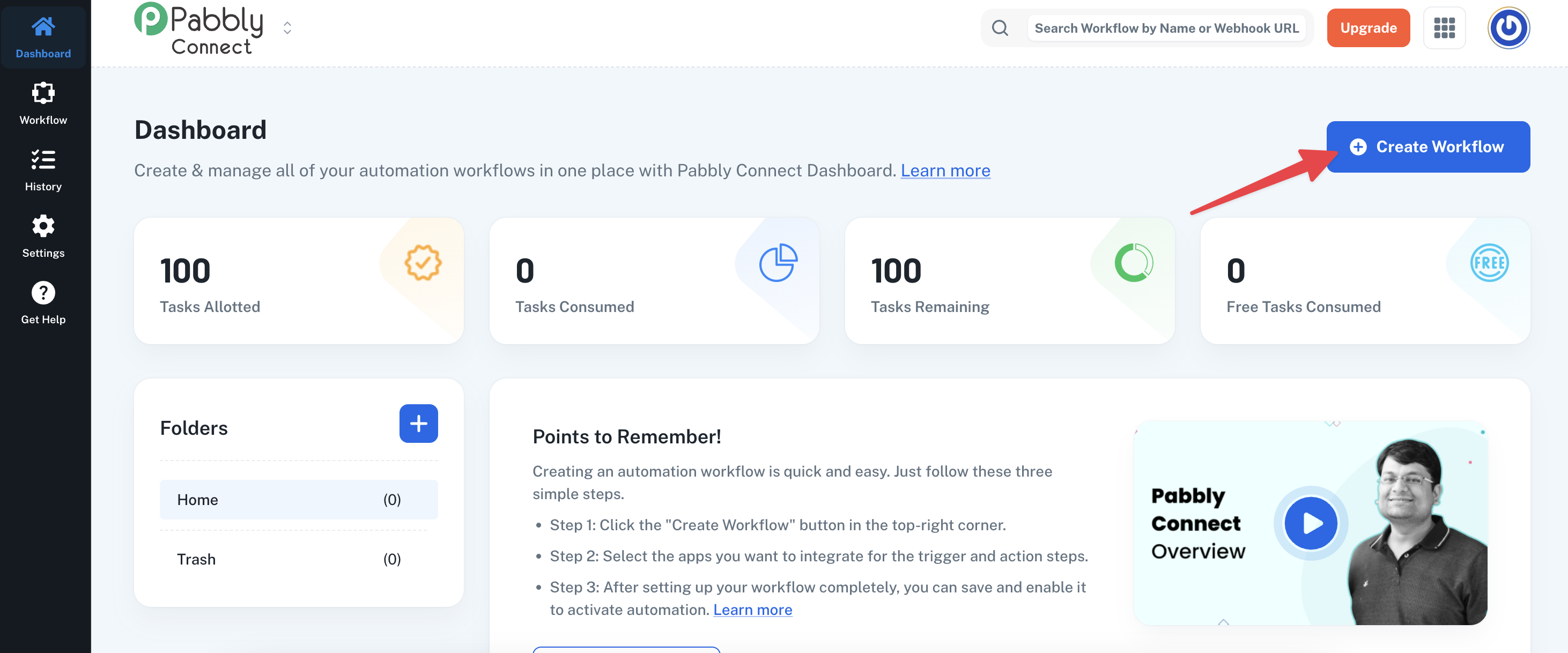
2. Click on Create Workflow.
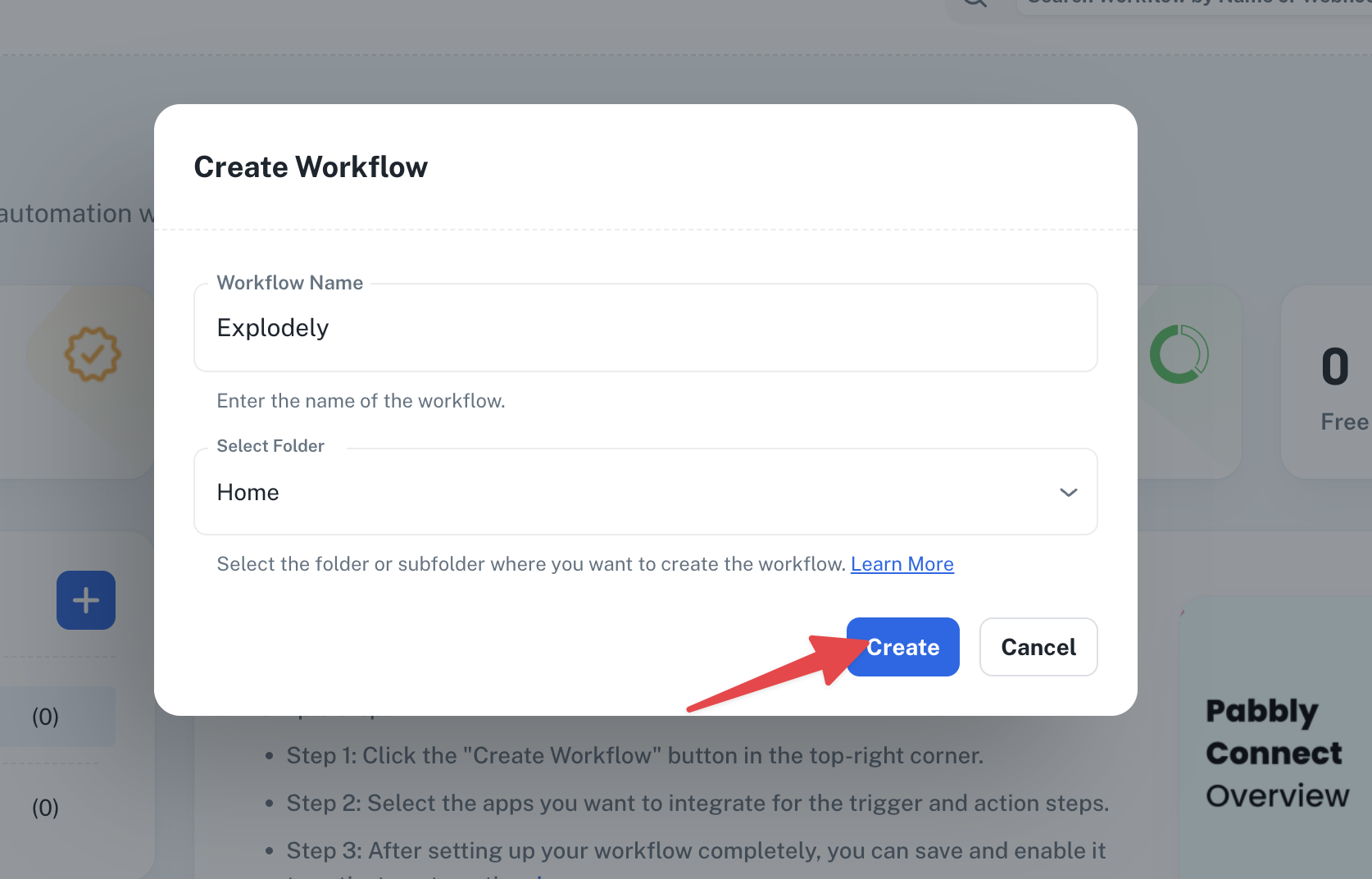
3. Enter your Workflow Name, select the folder where you want to save it, and click Create.
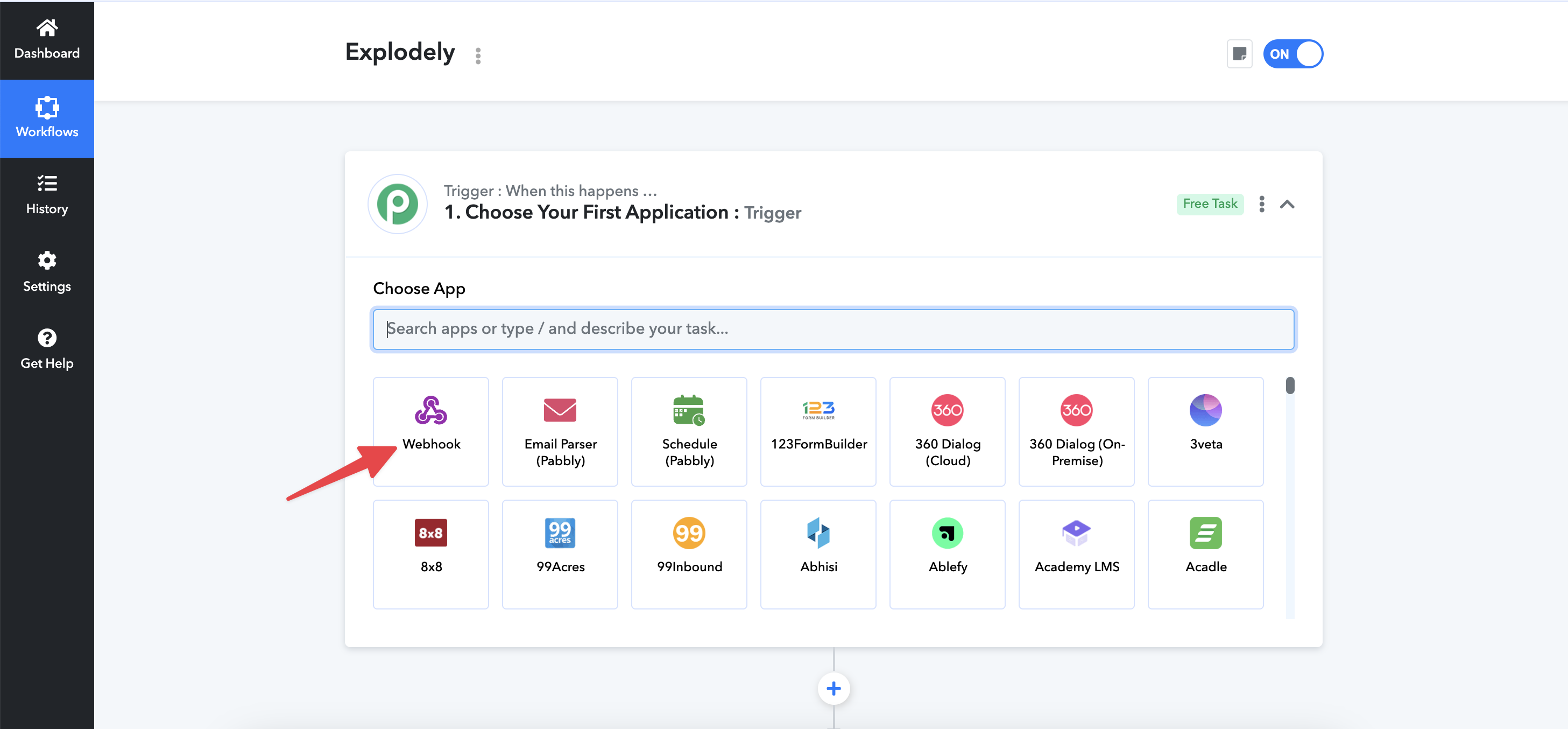
4. From the Trigger options, select Webhook.
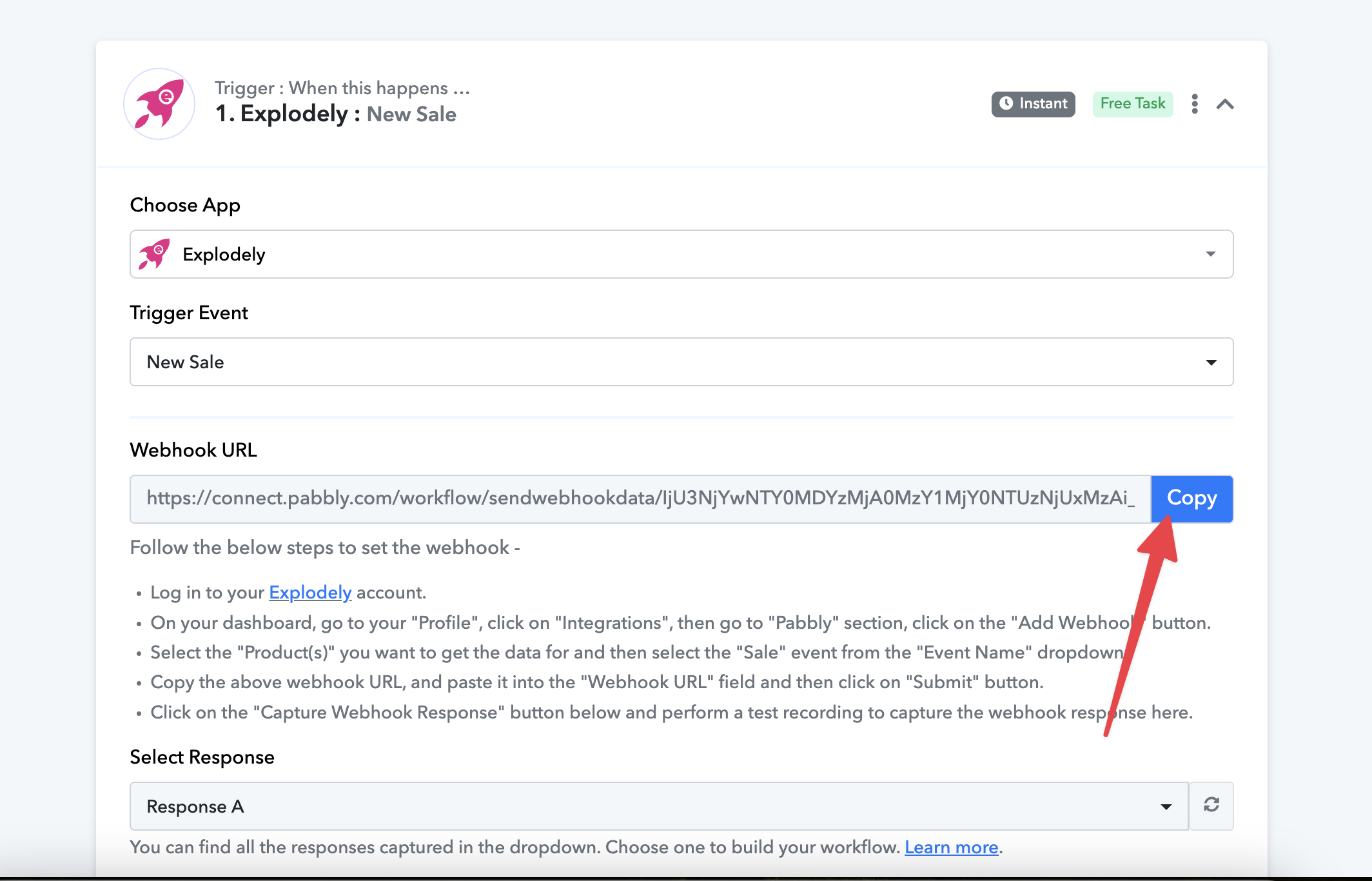
5. Copy the Webhook URL that appears on your screen — you’ll need this in the next step.
II. Add the Webhook to Explodely
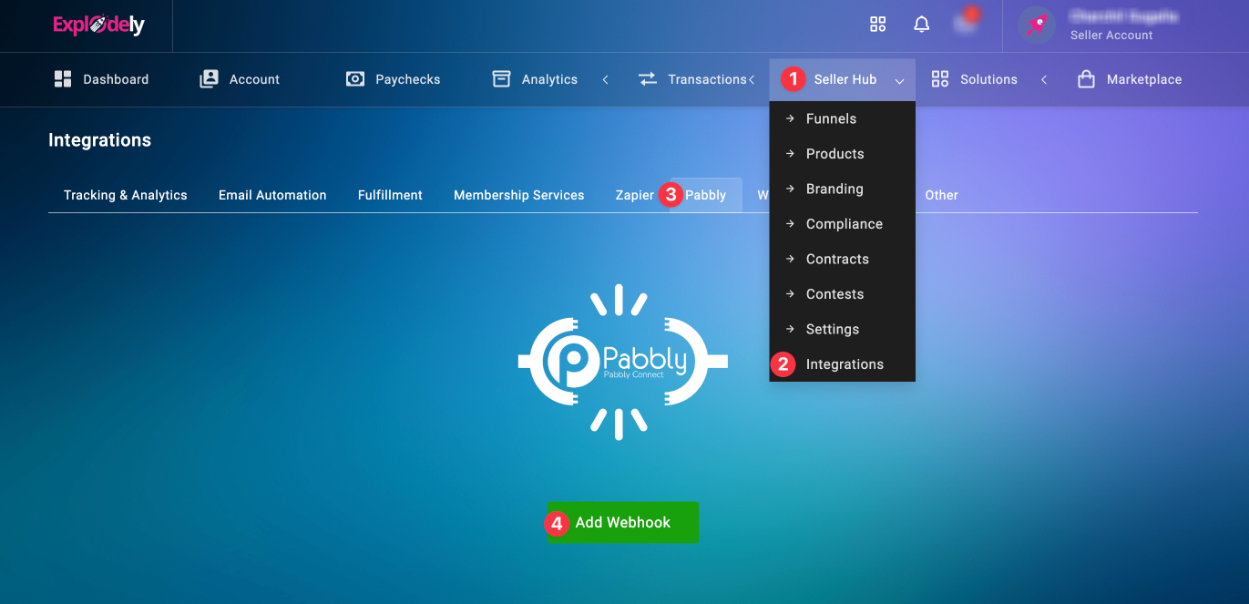
1. Log in to your Explodely account then go to Seller Hub-> Integrations-> Pabbly.
2. Click Add Webhook.
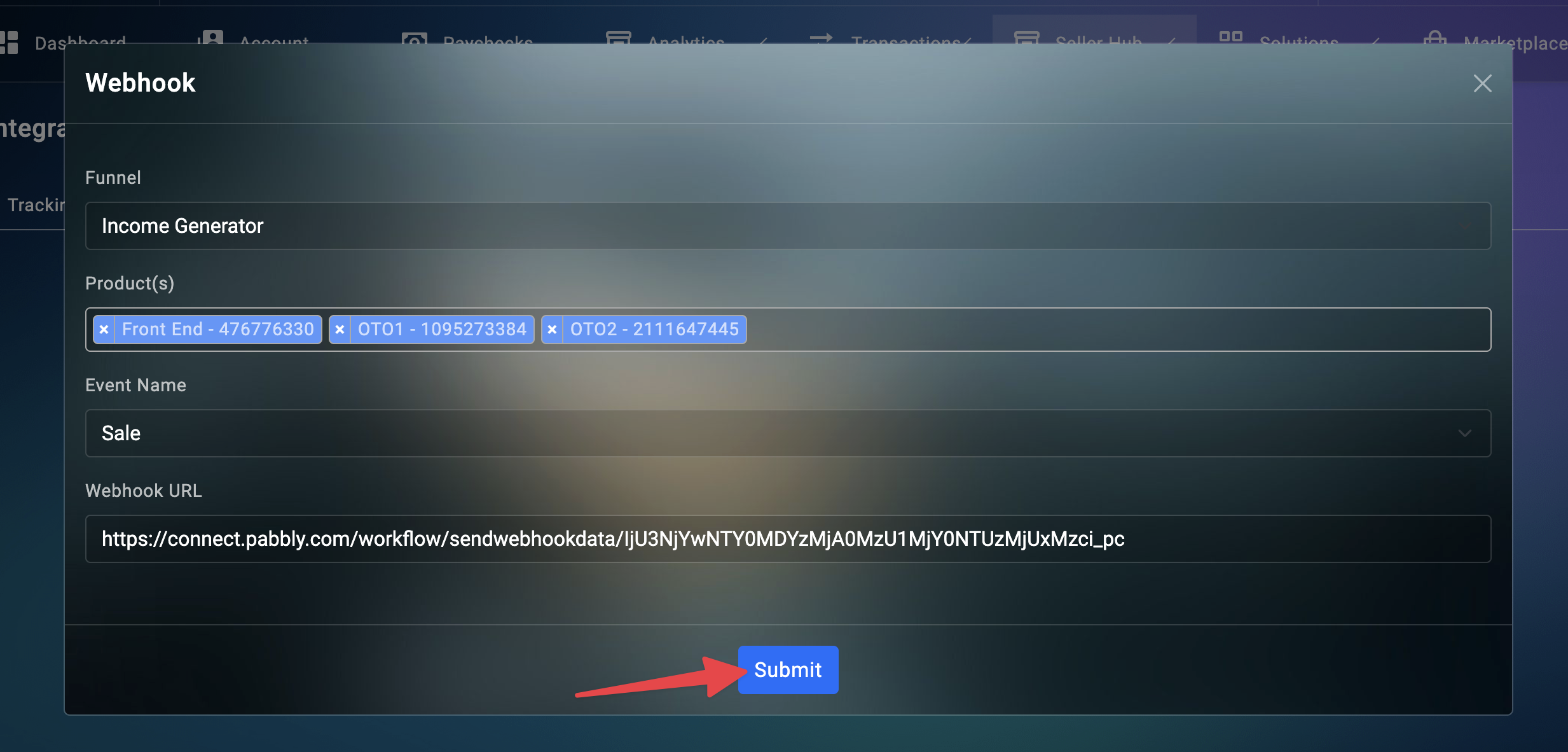
3. Enter the details for the integration you’re setting up.
4. Paste the Webhook URL (that you copied from Pabbly) into the Webhook URL field.
5. Click Submit to save it.
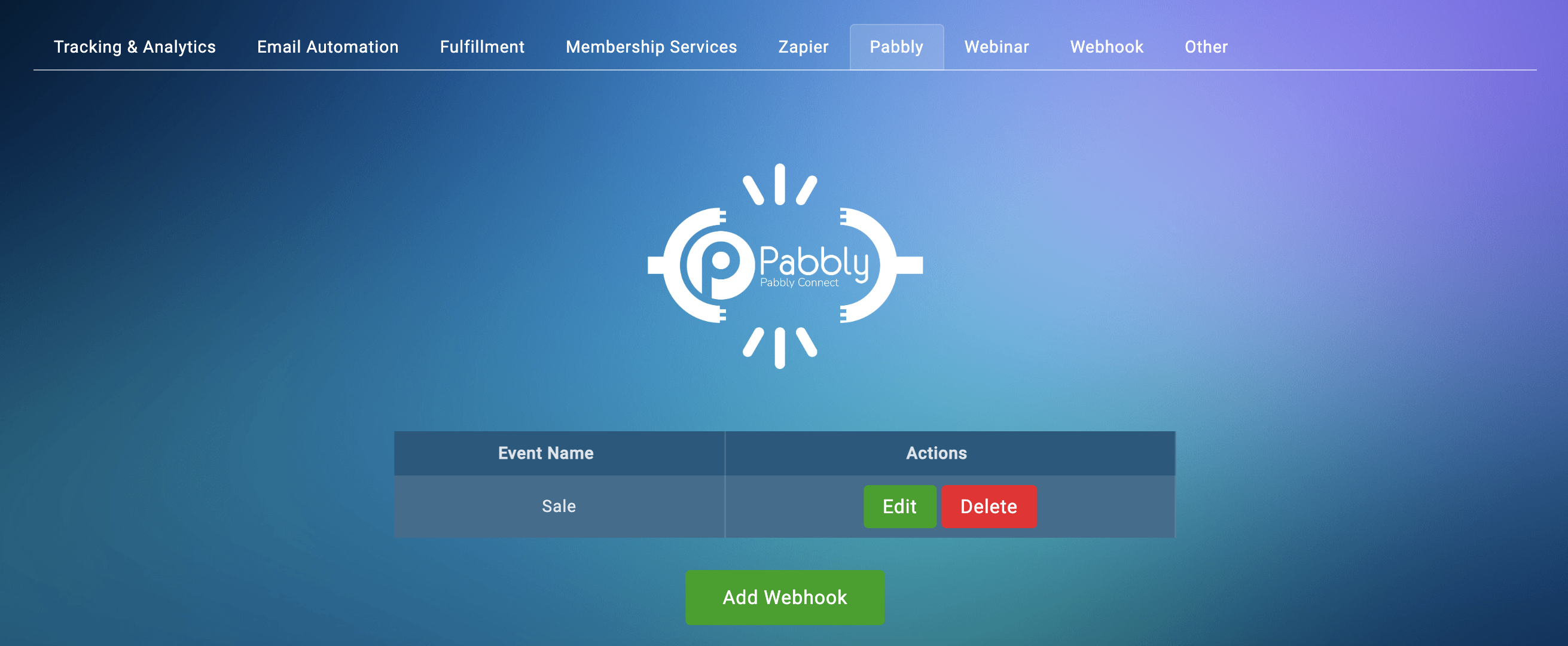
You can later edit or delete the integration from the Pabbly integration page. You can also add multiple webhooks for different events if needed.
III. Test the Webhook
Make a test sale in Explodely so that Pabbly can verify the webhook response. It might take up to 1–2 minutes to verify.
Once verified, you’ll see the details of the sale appear in Pabbly.
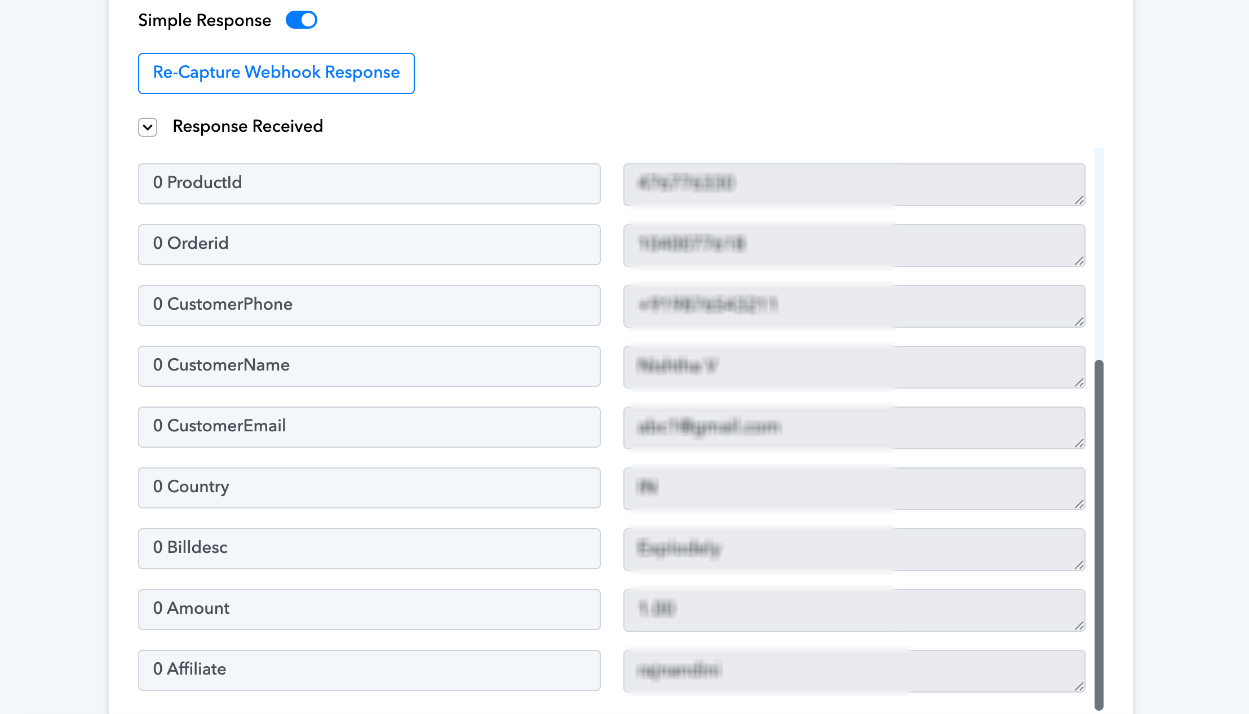
This confirms that the Trigger part of your workflow is set up successfully.
IV. Set Up the Action
Now that the trigger is ready, let’s connect Explodely to your desired app.
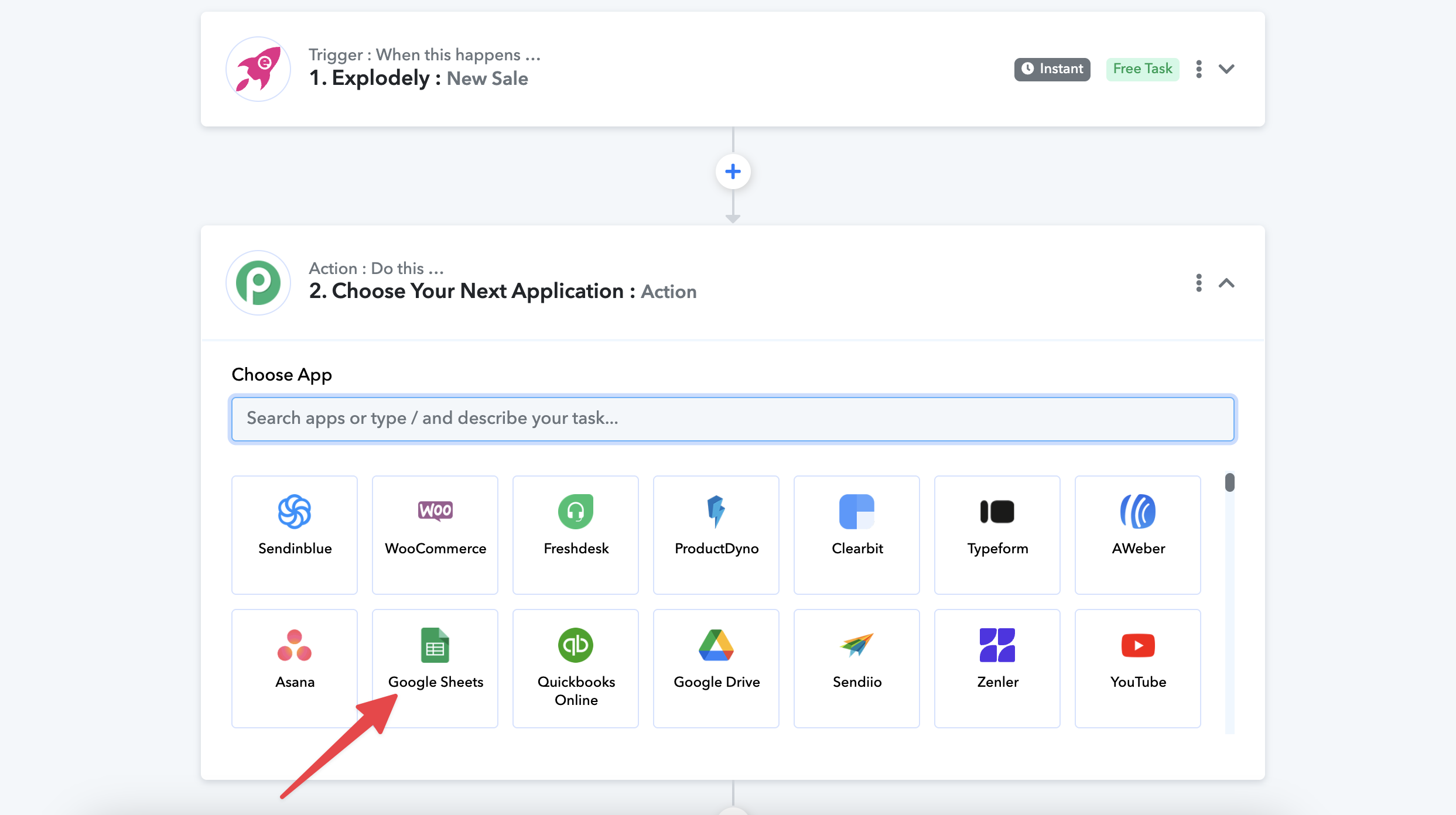
1. In Pabbly, choose the Action App you want to connect Explodely with. For example, if you’re connecting with Google Sheets, select it from the list.
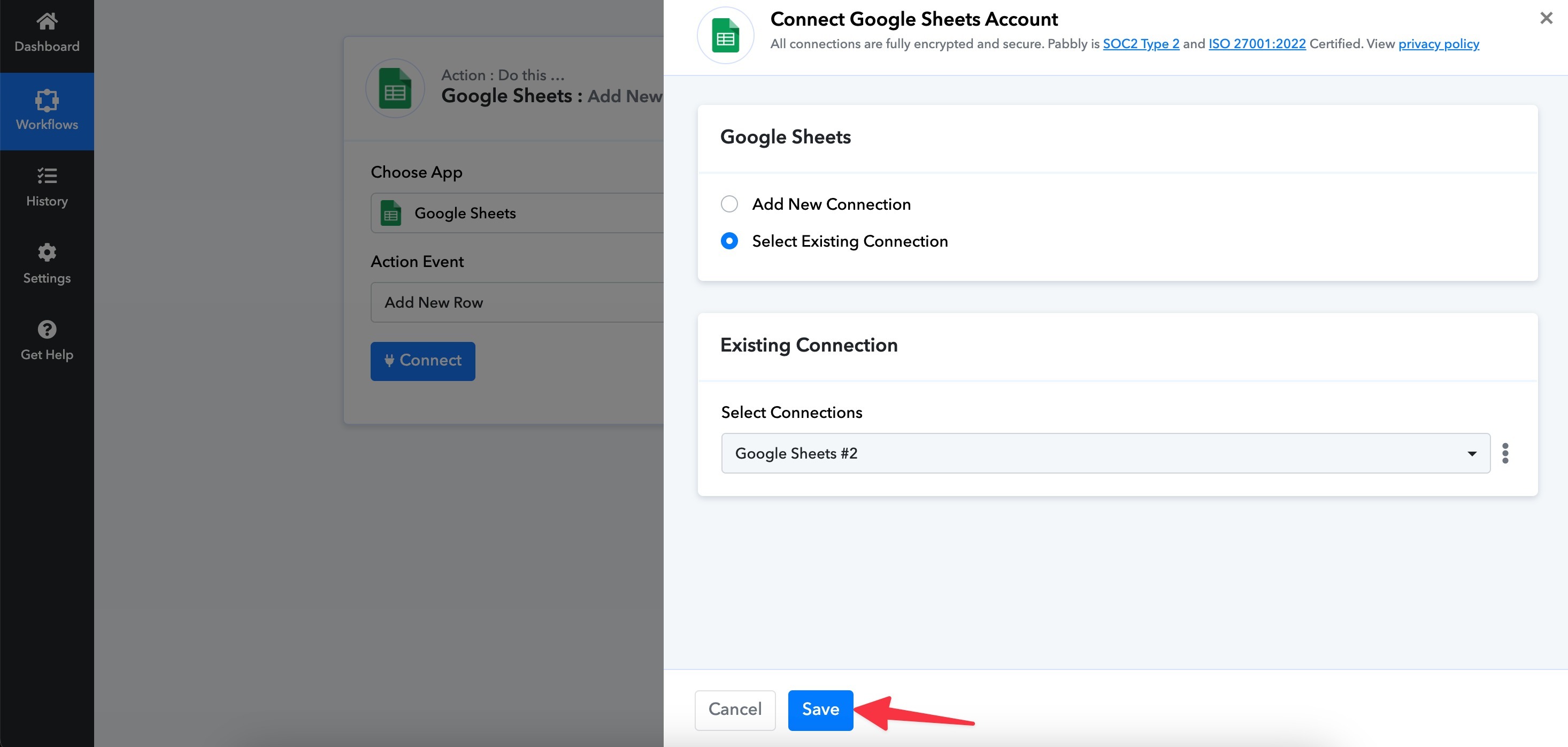
2. If you already have a saved connection, select it from the Existing Connection list.
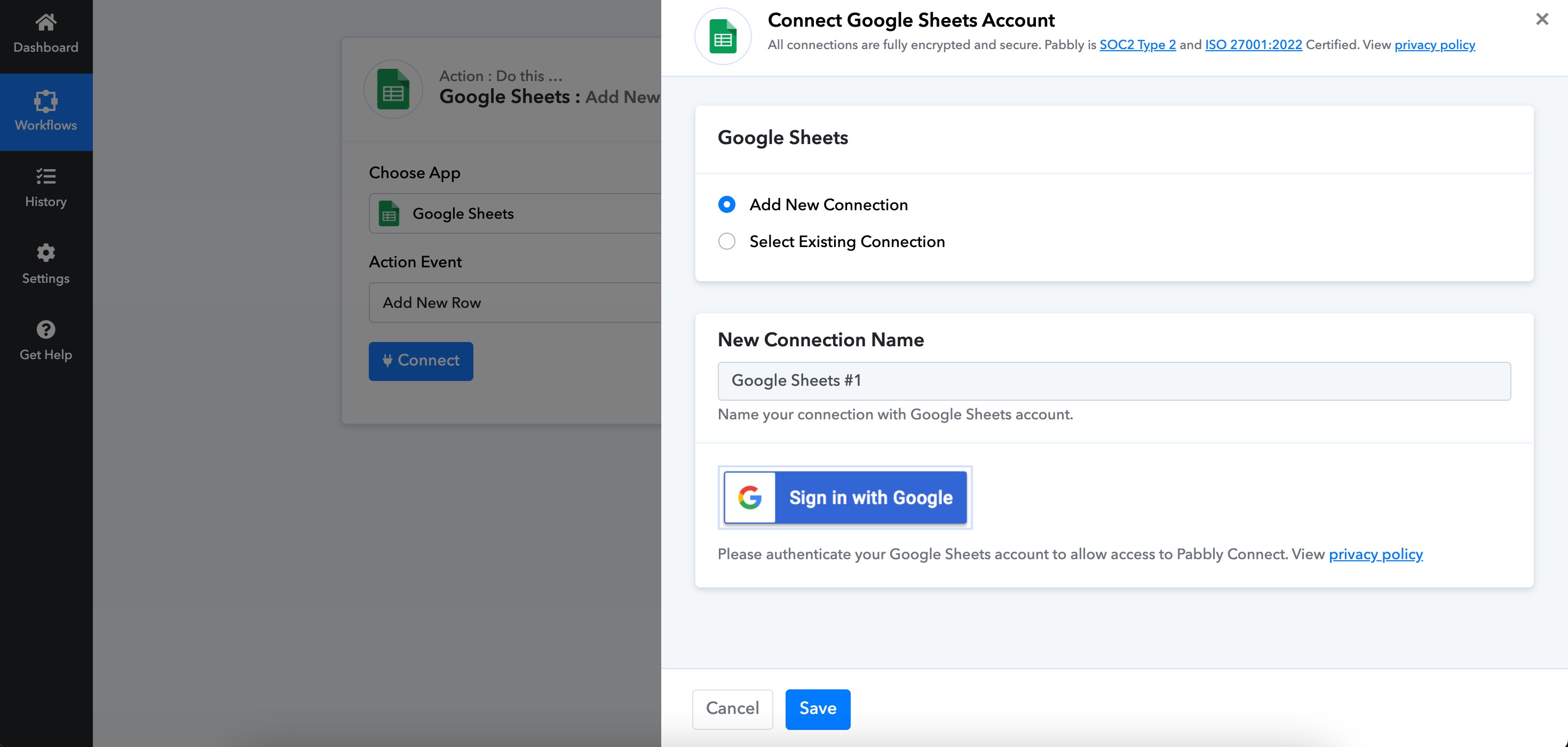
If not, click Add New Connection and sign in with your Google account to give access.
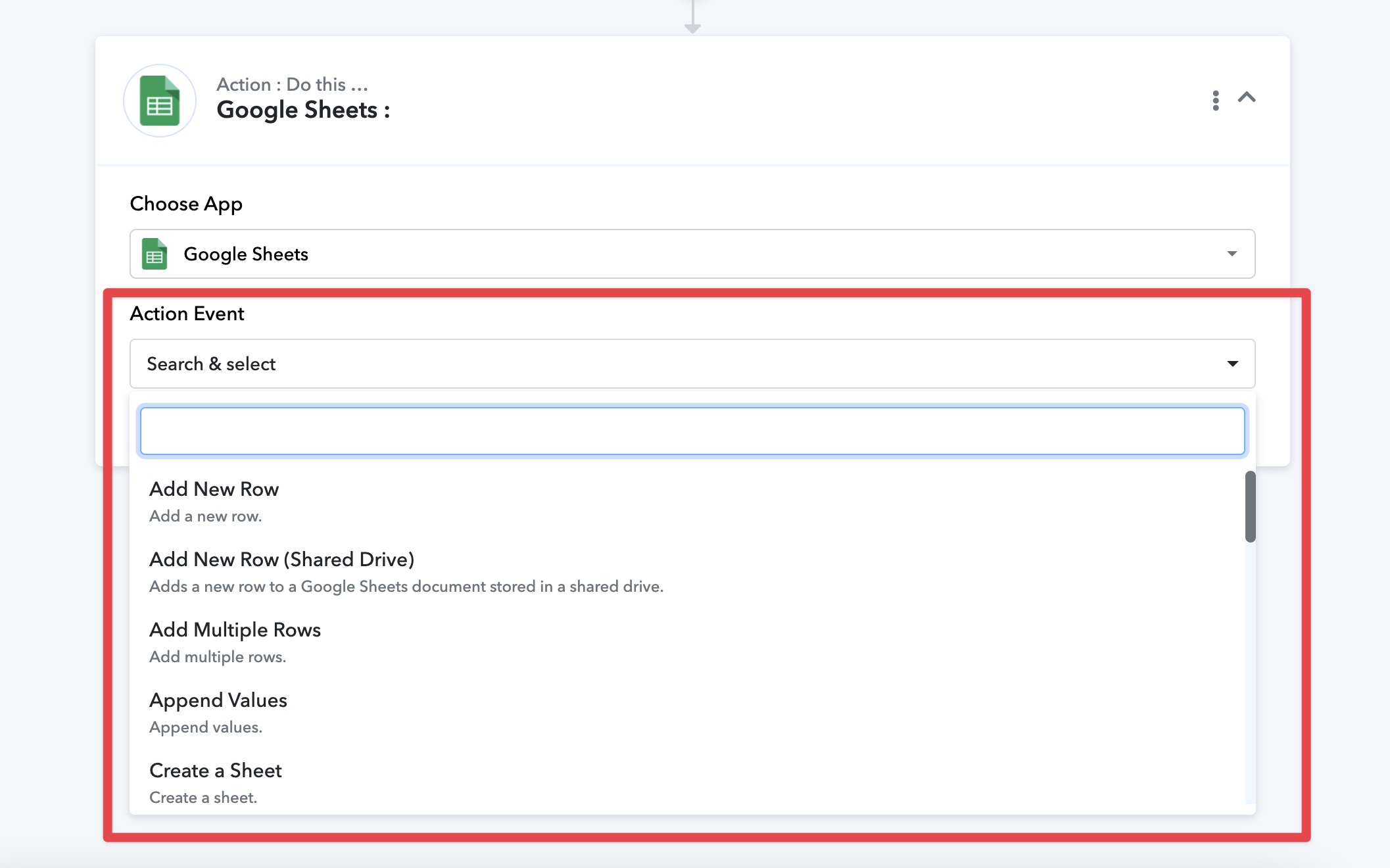
3. Once connected, choose the Spreadsheet and Sheet where you want to send the data. Fill out all required details for your Action.
4. Click Save & Send Test Request.
After the test completes, the test sale data from Explodely will appear in your selected Google Sheet.
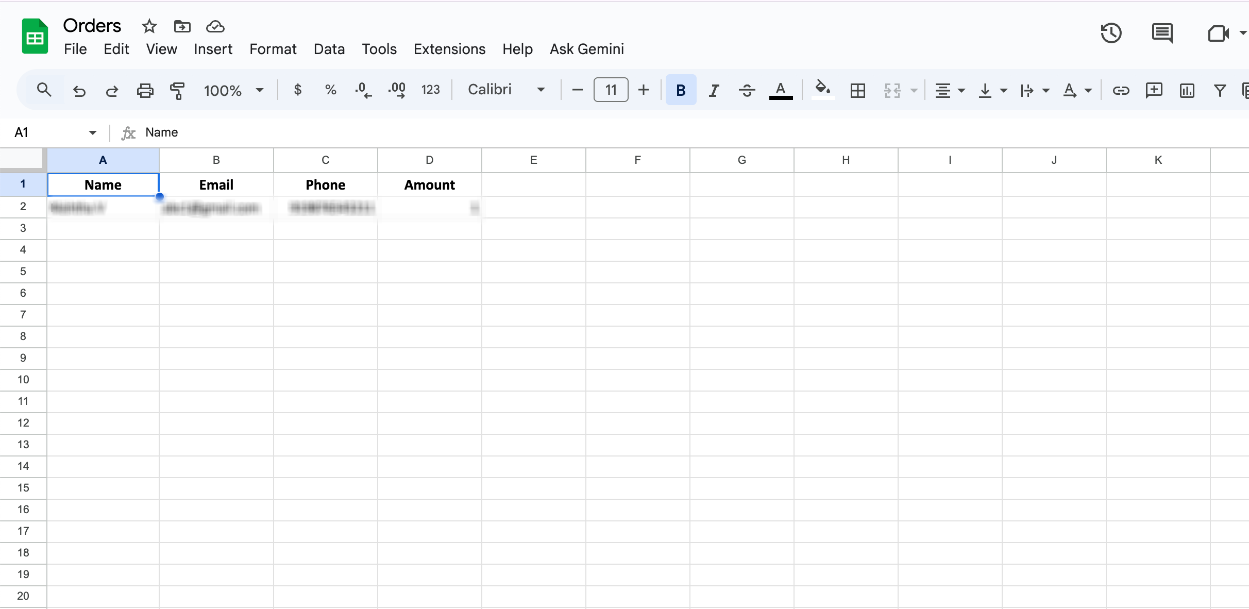
Your workflow is now ready and tested!
From now on, whenever the selected event happens in Explodely, Pabbly will automatically send that data to your connected app.
This integration helps you save time and effort by automating your tasks seamlessly — whether you’re sending sales data to Google Sheets, updating CRM records, or triggering custom workflows across your favorite tools.
Please contact us if you have any questions or concerns at sellers@explodely.com.