
Pop-up Checkout allows you to display the checkout in a modal/pop-up window that appears on top of your page when a user clicks a button. This approach keeps users on the same page while still providing a focused checkout experience.
It is especially useful for funnels with upsells(OTOs), as it enables smoother transitions and supports one-click upsell functionality without requiring page redirects.
TABLE OF CONTENTS
- Setup Popup Checkout
- Adding Multiple Pop-up Checkouts
- Customising Button Style in Pop-up Checkout
- Where to Add the Code (Popular Page Builders)
⚠️ Important Requirement Before Using This FeatureWe recommend sharing your funnel details (including front-end and OTO pages) for our team to review to ensure the code has been properly implemented .
Setup Popup Checkout
i) Copy the code (HTML / JavaScript) and add it as an embed code.
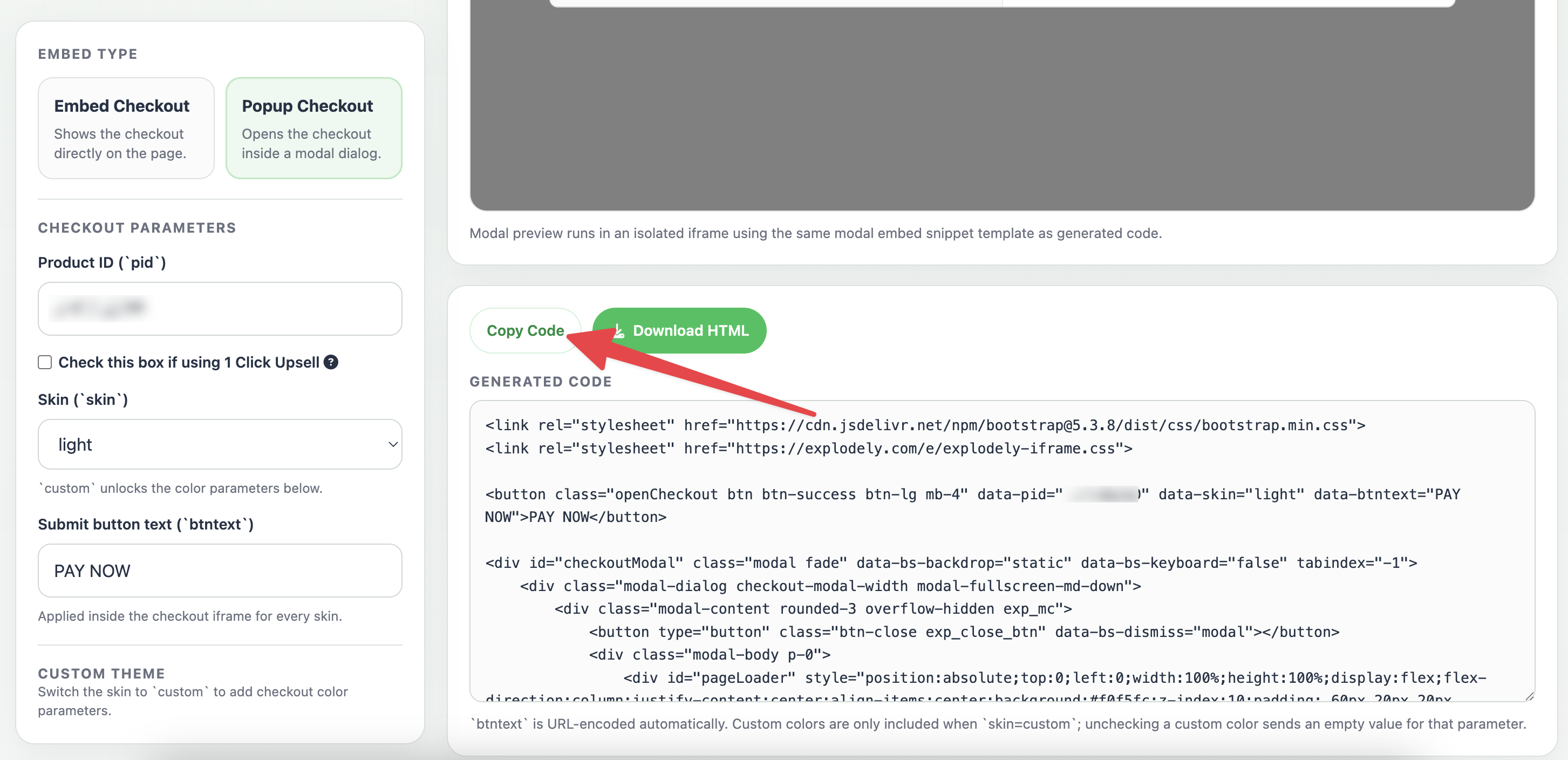
How it works:
A button will appear on your sales page like this:
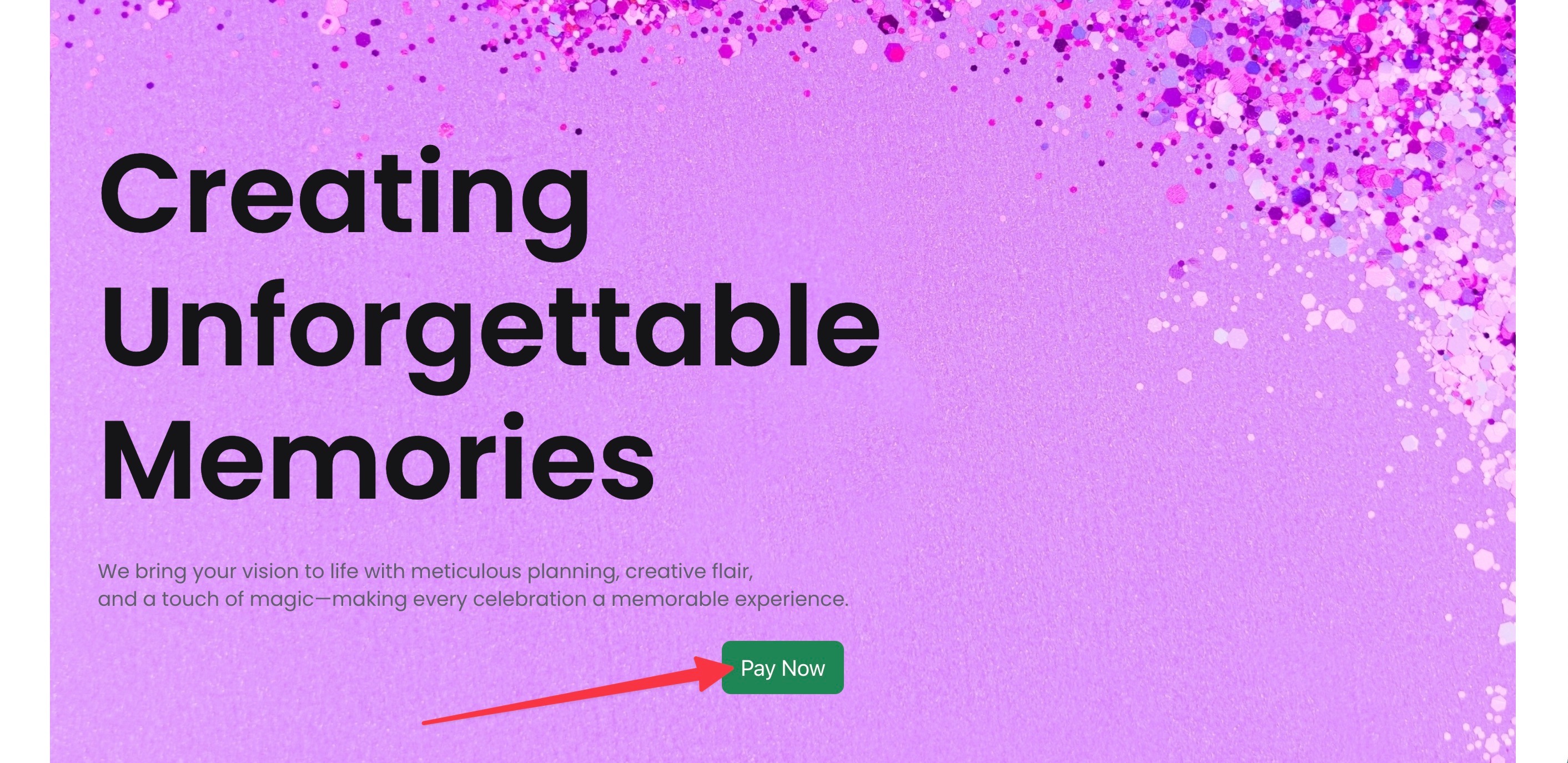
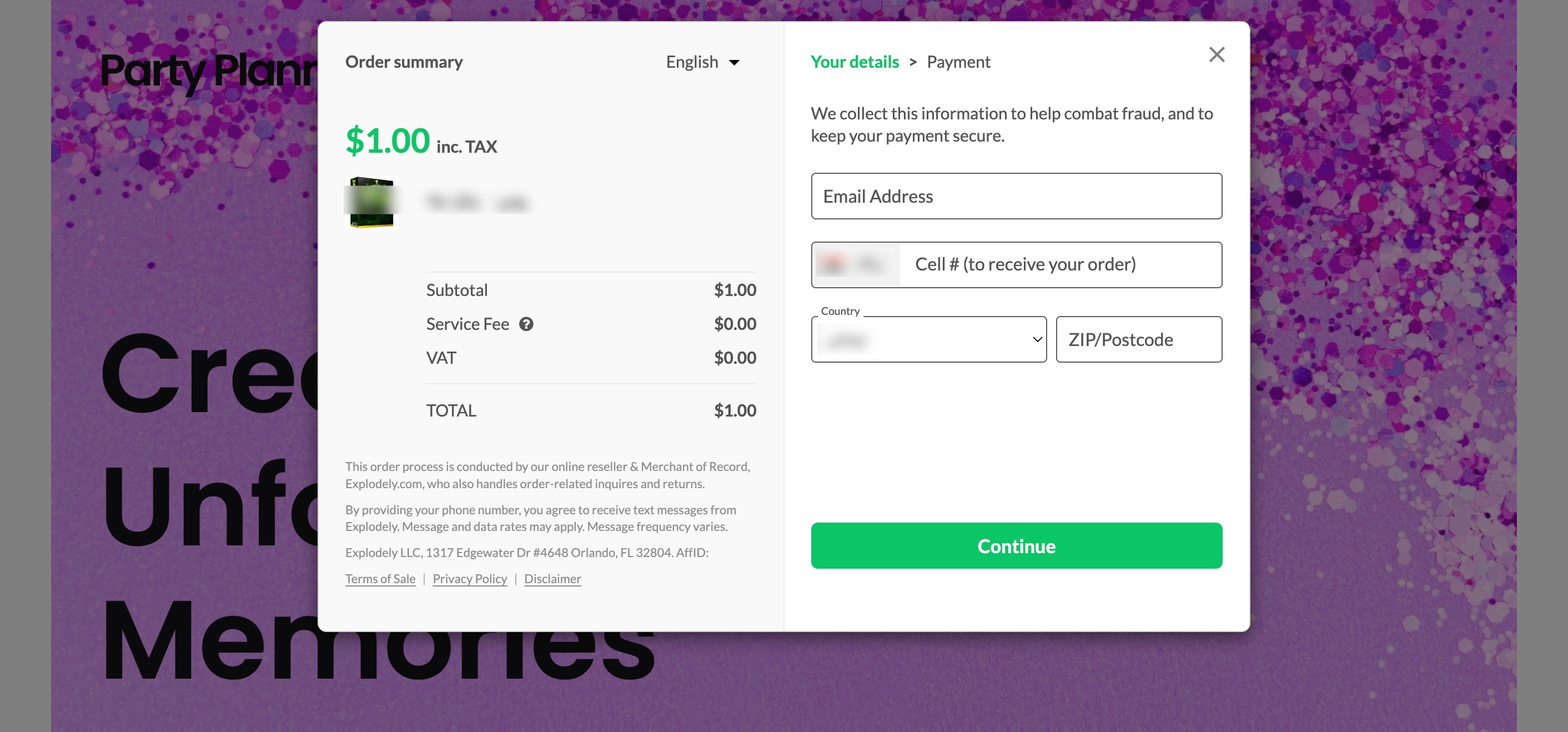
When a user clicks the button, the checkout opens as a pop-up on the page.
Adding Multiple Pop-up Checkouts
You can use multiple Pop-up Checkouts on the same page, but this setup is only supported for front-end (FE) and standalone offers.
When adding multiple pop-up checkout buttons on a single page, the code setup needs to be handled carefully to avoid duplication issues.
Setup:
i) For the first button, copy and add the complete pop-up checkout code to your page as shown .
ii) For any additional buttons, only copy and add the button HTML code (do not include the full script again).

Customising Button Style in Pop-up Checkout
In the Pop-up Checkout, you also have the option to customise how your checkout button appears on your page.
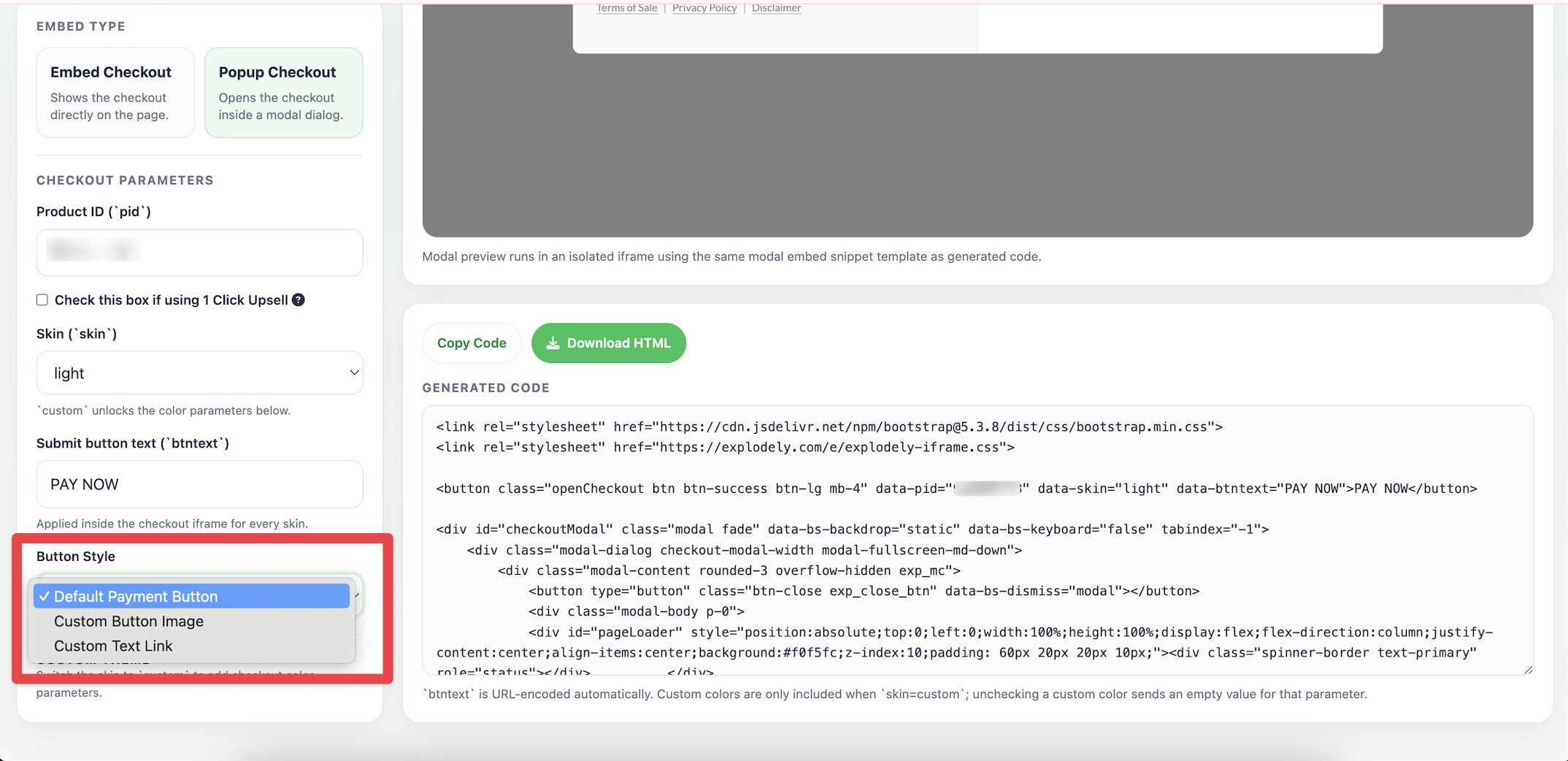
By default, the Button Style is set to a Default Payment Button. However, you can choose from two additional options:
Custom Button Image
Custom Text Link
Once you select these, the button portion of the code will be updated automatically and you simply need to copy the whole code and add it as an embed code.
1. Custom Button Image
Once added, a custom button will appear on your page, and when a user clicks on it, the pop-up checkout will open.
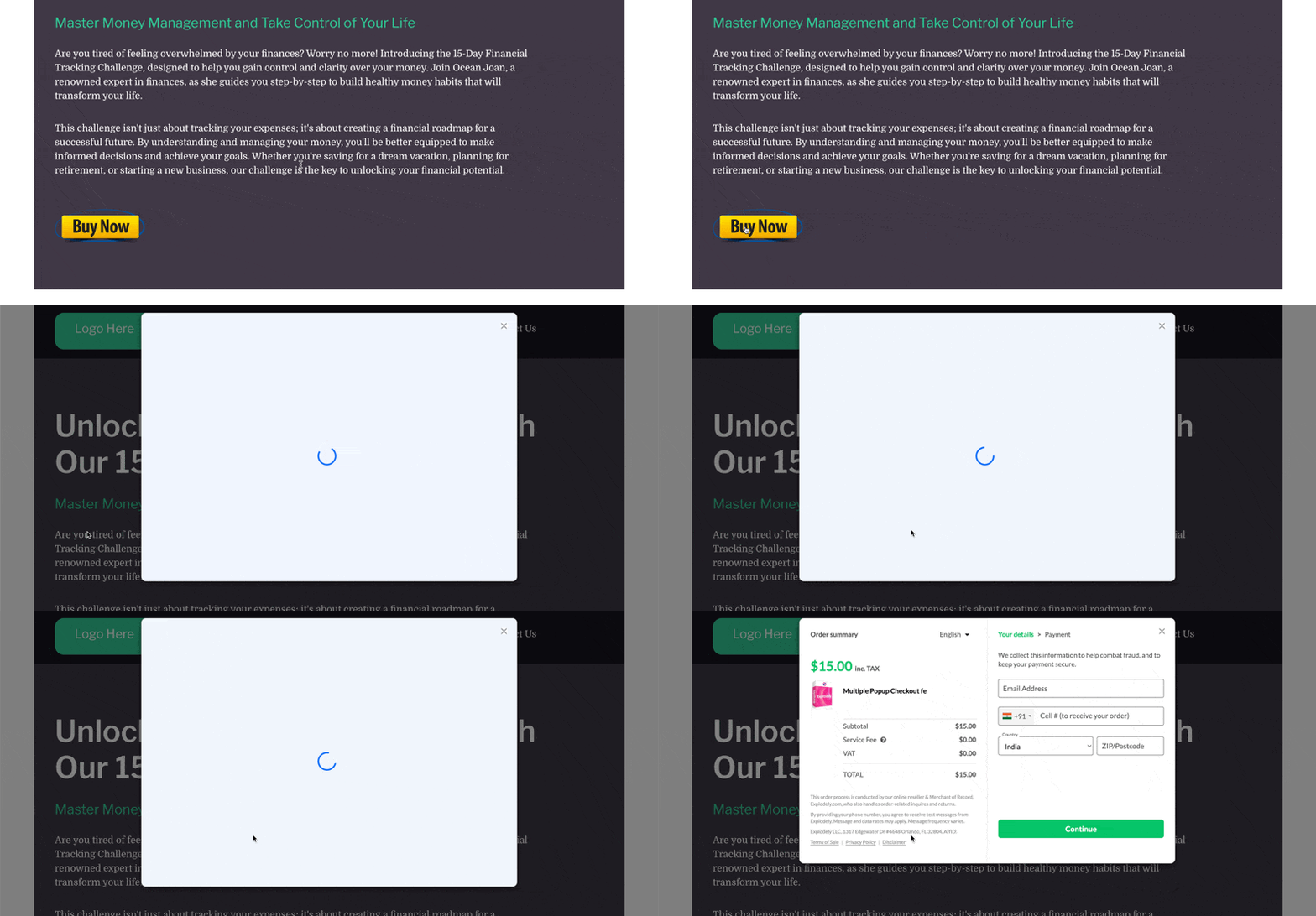
You can also adjust the size of this button. By default, the button height is set to 80px, but you can increase or decrease it by editing the height value directly in the code, depending on what fits best with your page design.
2. Custom Text Link
When you select this and add the embed code for it, a text link will appear on your page, and clicking on it will open the pop-up checkout.
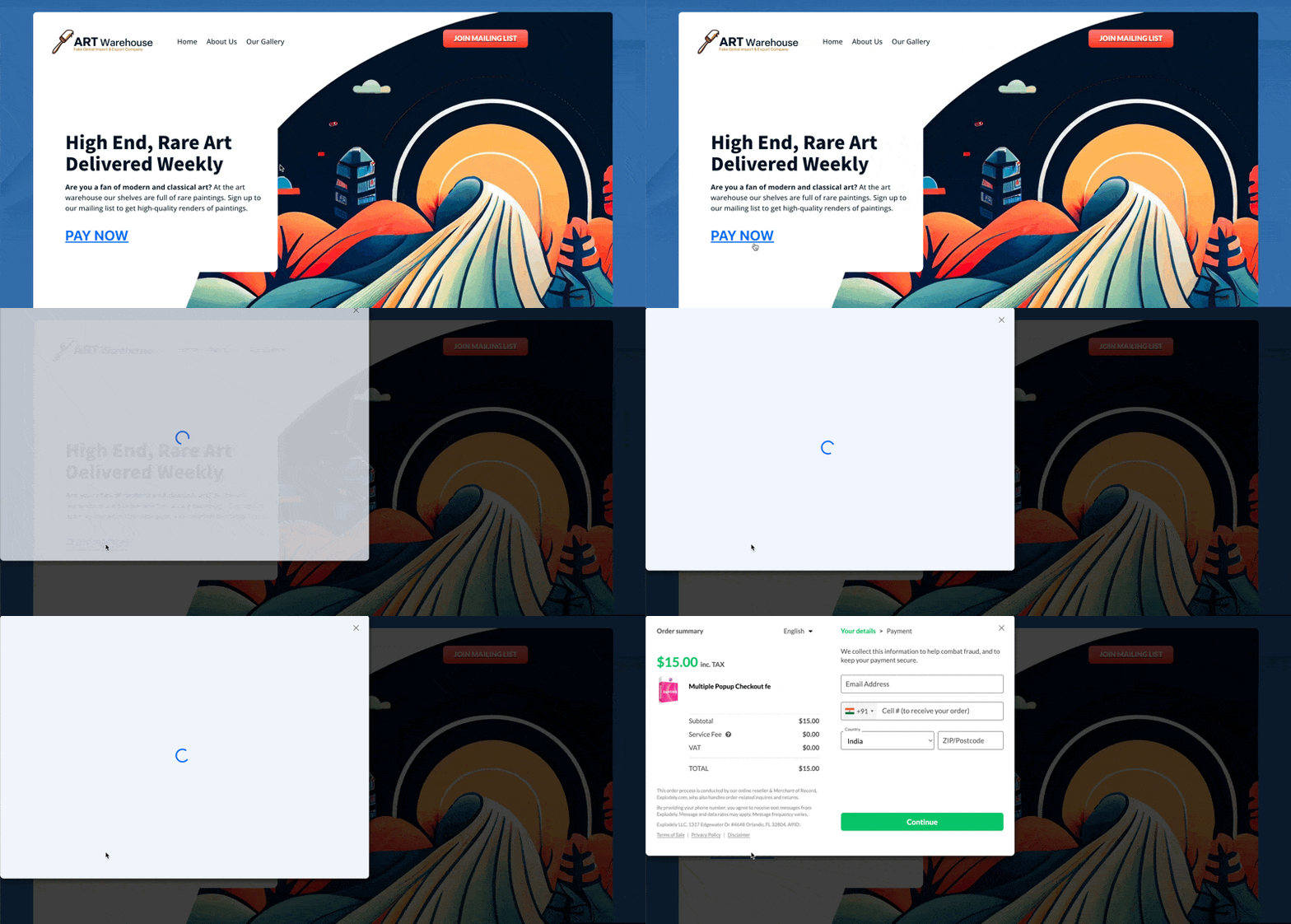
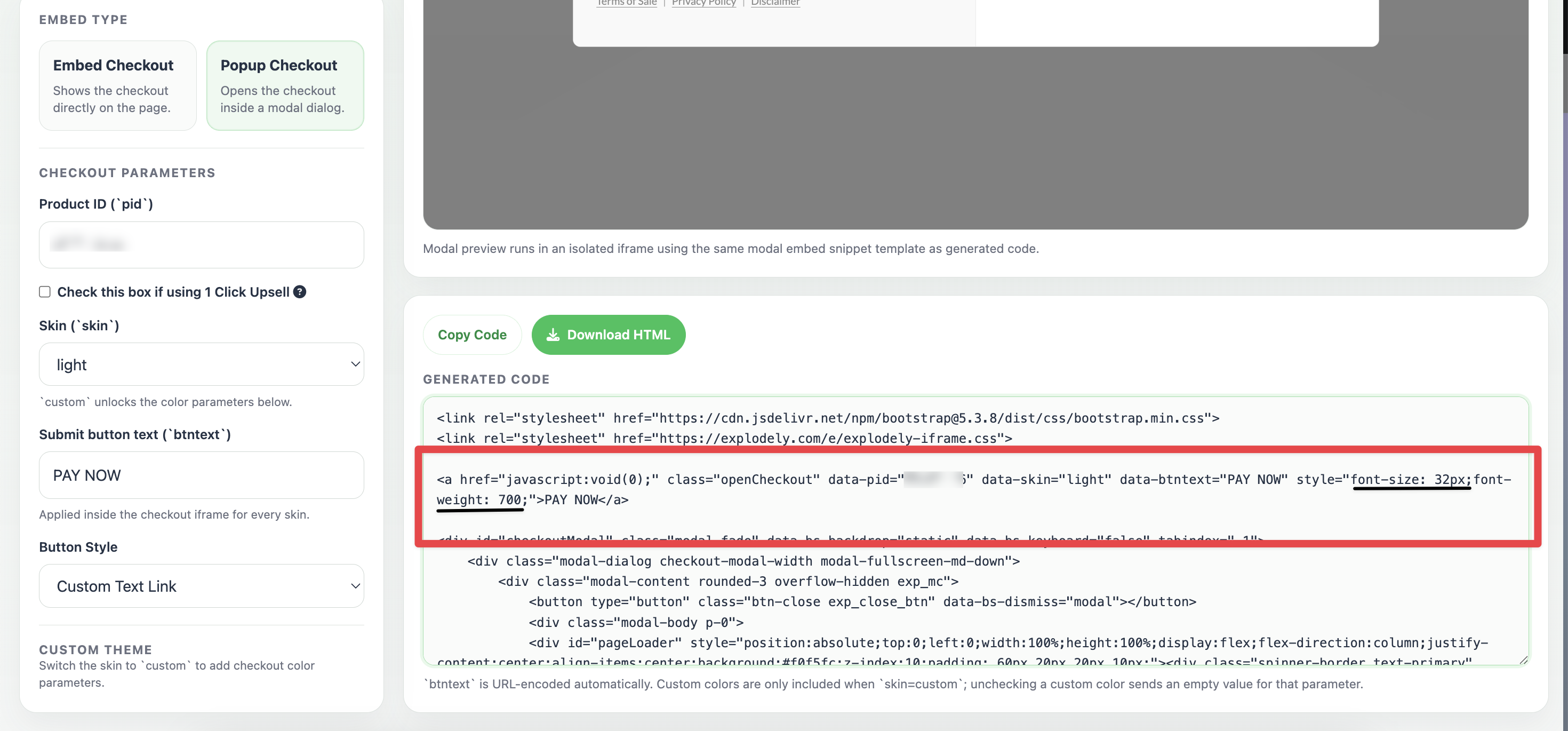
For the text link, you can customise both the font size and how bold the text appears. The font size is set to 32px by default, and the text thickness (font weight) is set to 700. You can modify both values in the code to match your page design and preferences.
Where to Add the Code (Popular Page Builders)
Once you’ve copied the pop-up code from Explodely, you need to paste it into your page. The exact steps may vary depending on the page builder you are using, but below are examples for some commonly used platforms:
Systeme.io
i) Open your funnel inside systeme.io and go to the page where you want to add the checkout.
ii) Click on Edit Page.
iii) Add a Raw HTML block from Elements to your page and click on Edit Code.
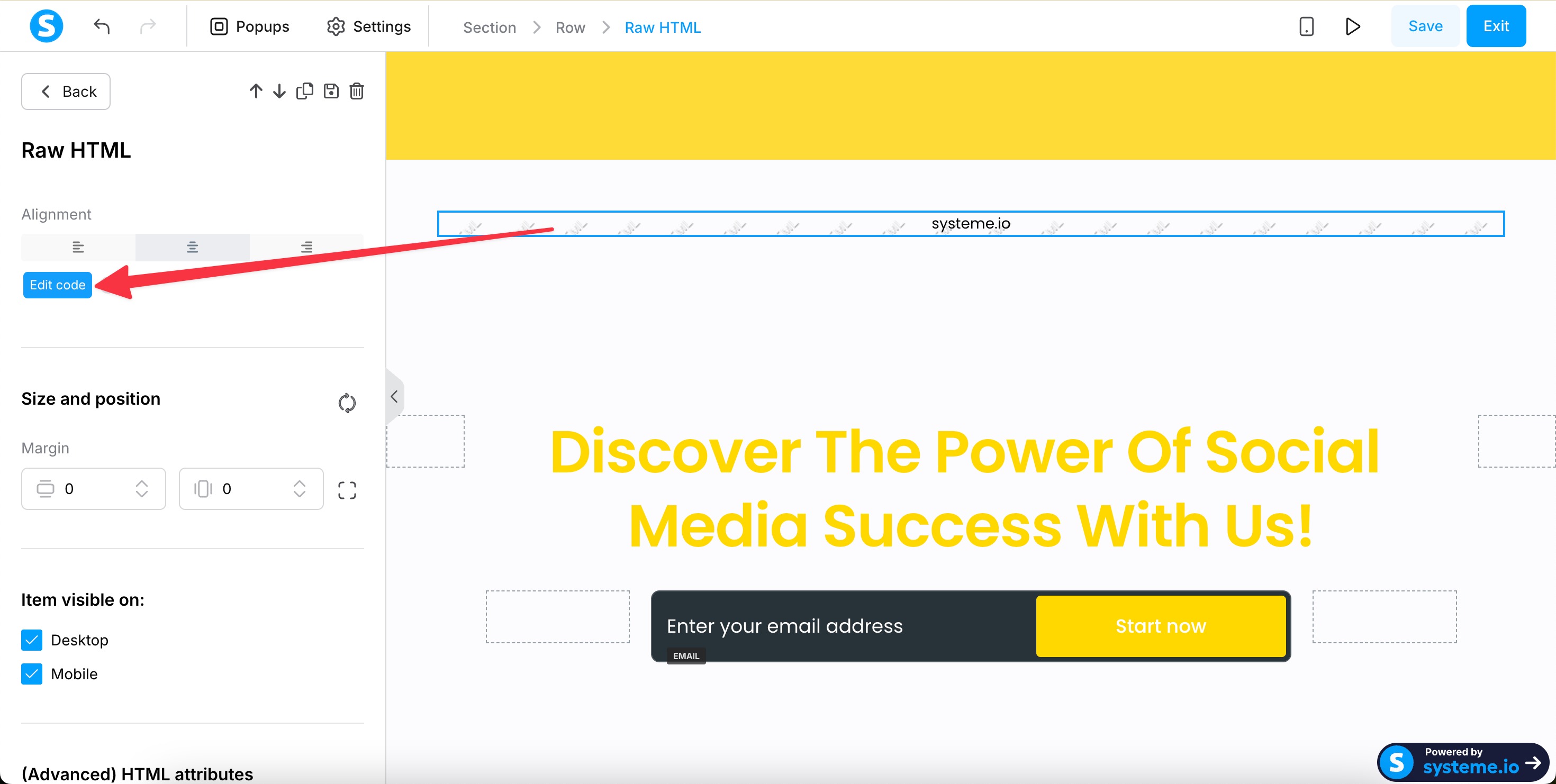
iv) Paste the copied code into the HTML block.
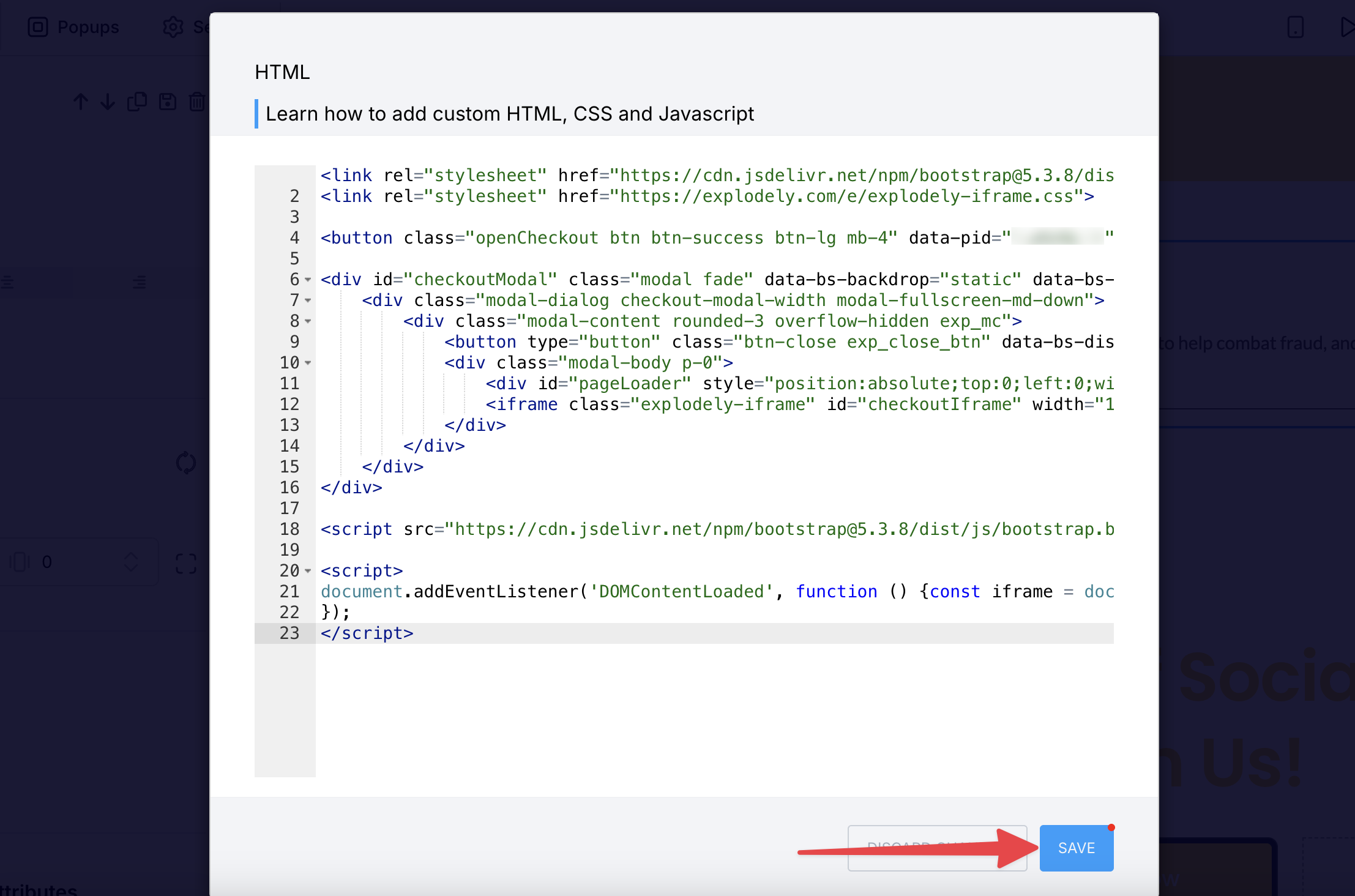
v) Save and publish the page.
ClickFunnels:
i) Open your funnel and select the page you want to edit, then click on Edit Page.
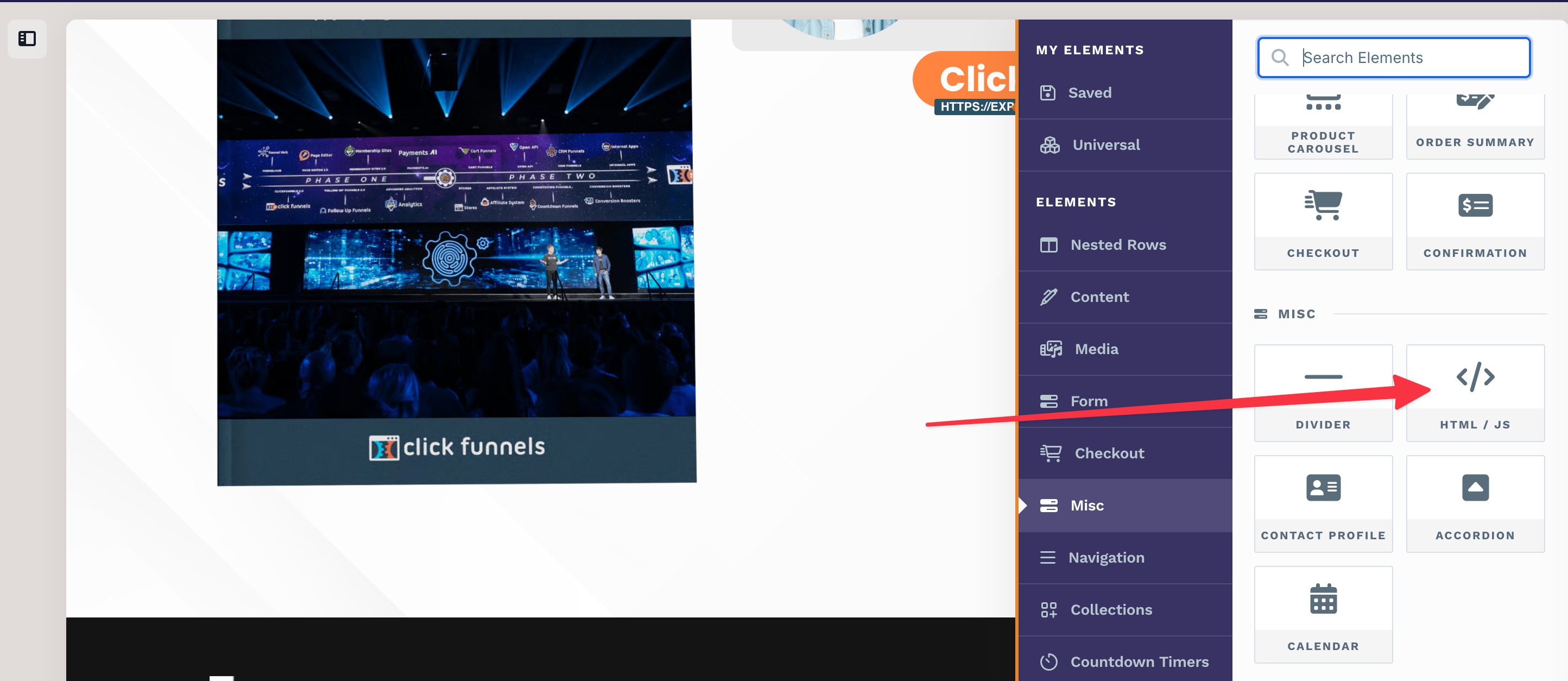
ii) Add a Custom HTML/JS element to the page.
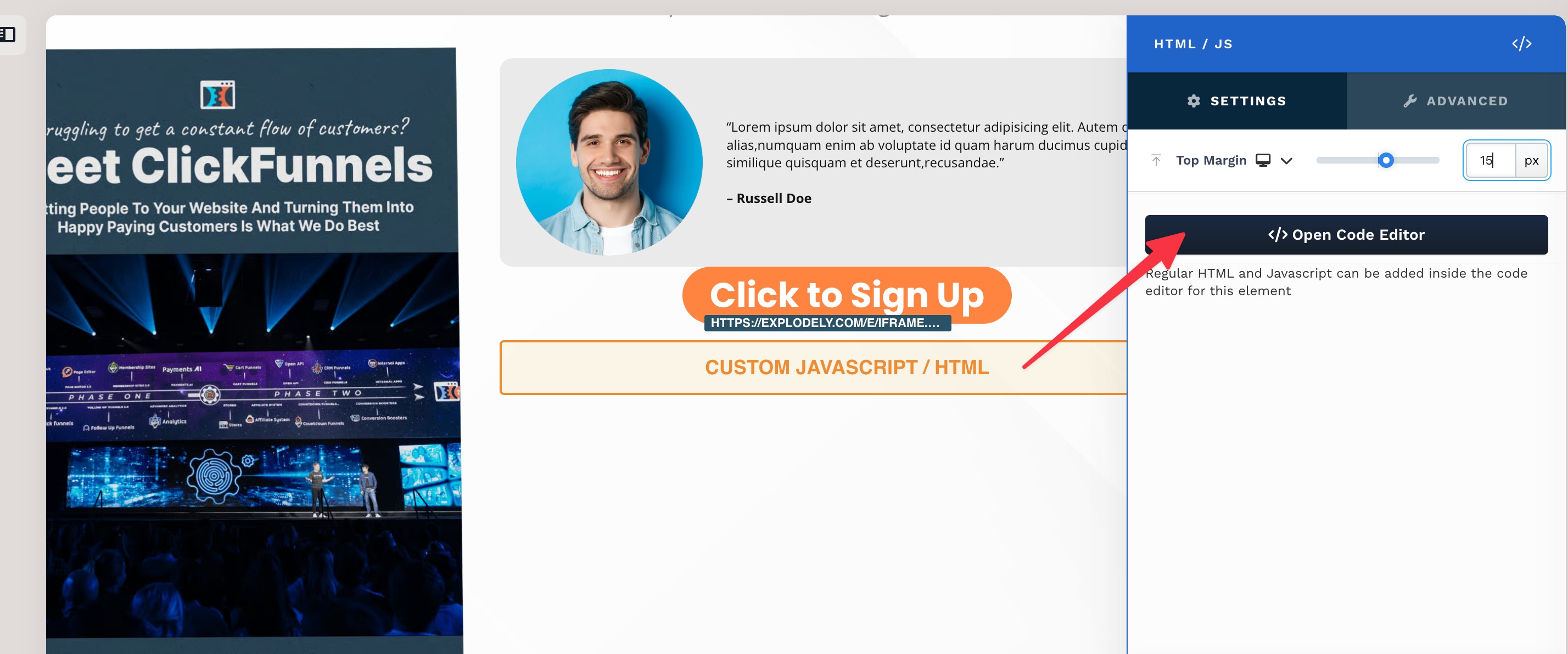
iii) Now click on Open Code Editor.
iv) And paste the copied code into the element.
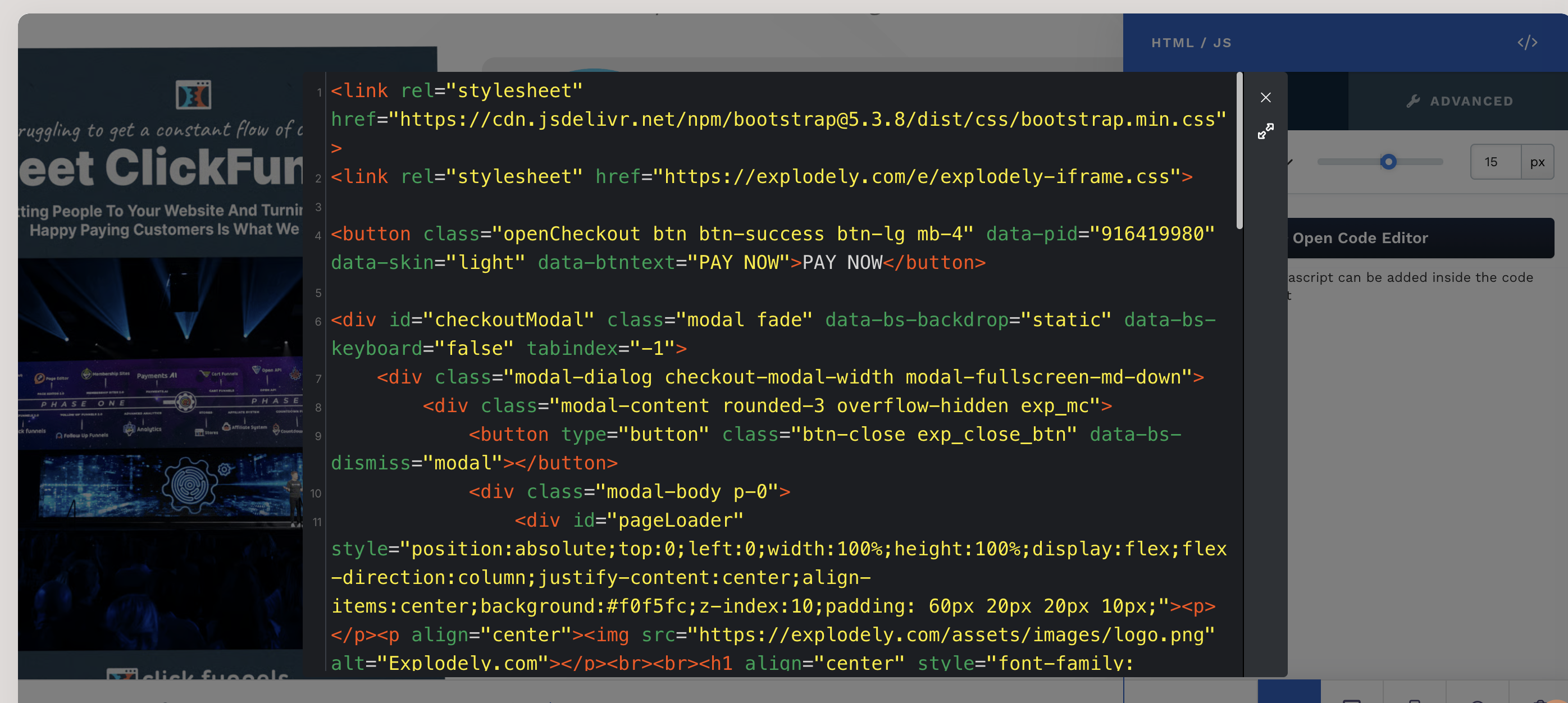
v) It auto saves changes so close the code editor and Save the entire page.
Important Points:
i) On front-end pages, you can use multiple pop-up checkouts.
ii) On OTO pages, only one pop-up checkout is supported.
iii) 1-Click Upsells (1CU) WILL work with pop-up checkout.
For setting up Pop-up Checkout specifically for upsells, refer to our detailed guide on Custom Checkout for OTOs (One-Click Upsells).
Please contact us if you have any questions or concerns at sellers@explodely.com.