
You can integrate your Explodely account with VTurb using Make.com to track conversions and automate data flow using webhooks.
This guide walks you through setting up:
- Make.com webhook scenario
- Explodely Global IPN
- VTurb conversion tracking
- Final webhook connection
Step 1: Set Up Scenario in Make.com
1. Log in to your Make.com account and create a new scenario

2. Download the blueprint here:
https://drive.google.com/file/d/1Kc5uHJ_9hAFdpwQd7-Sd4sAjZGMuXkO2/view?usp=sharing
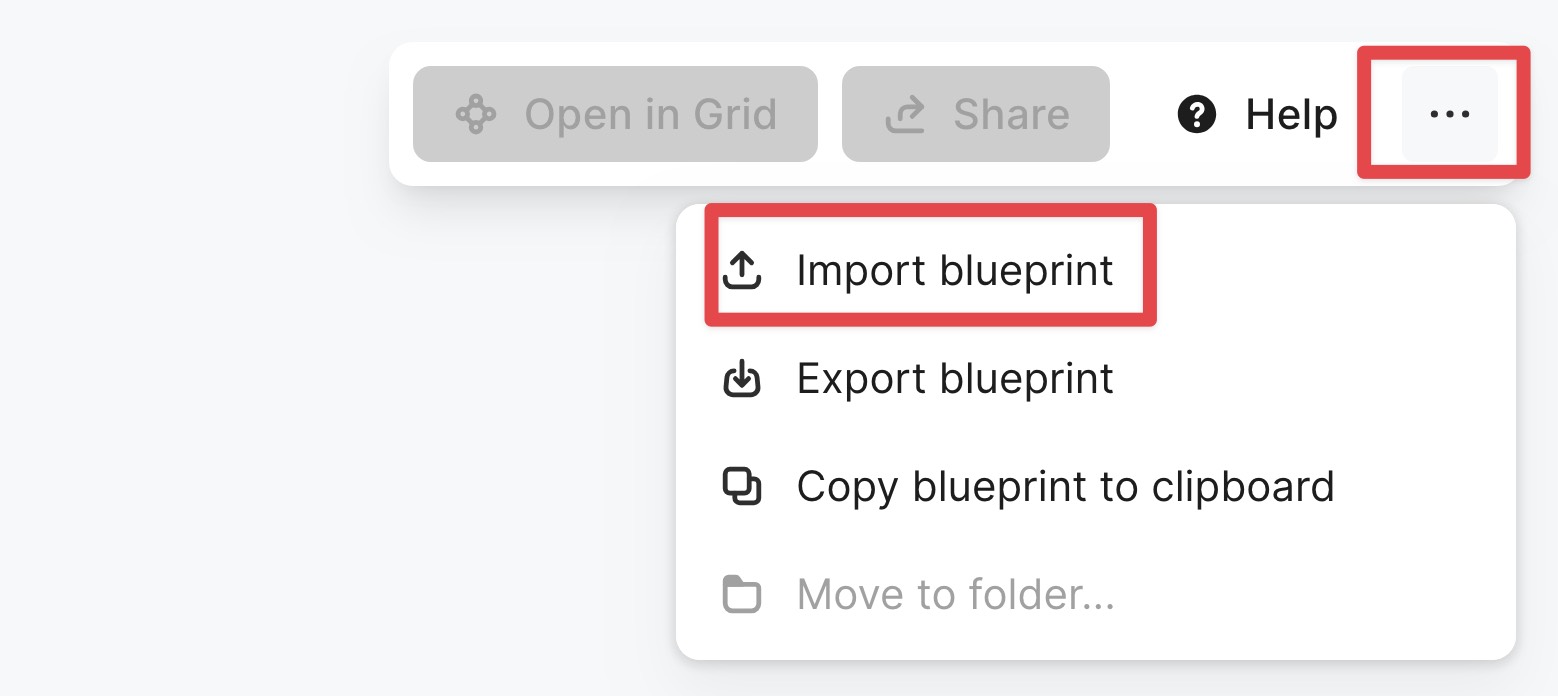
3. Click the three dots at the top and select Import Blueprint.
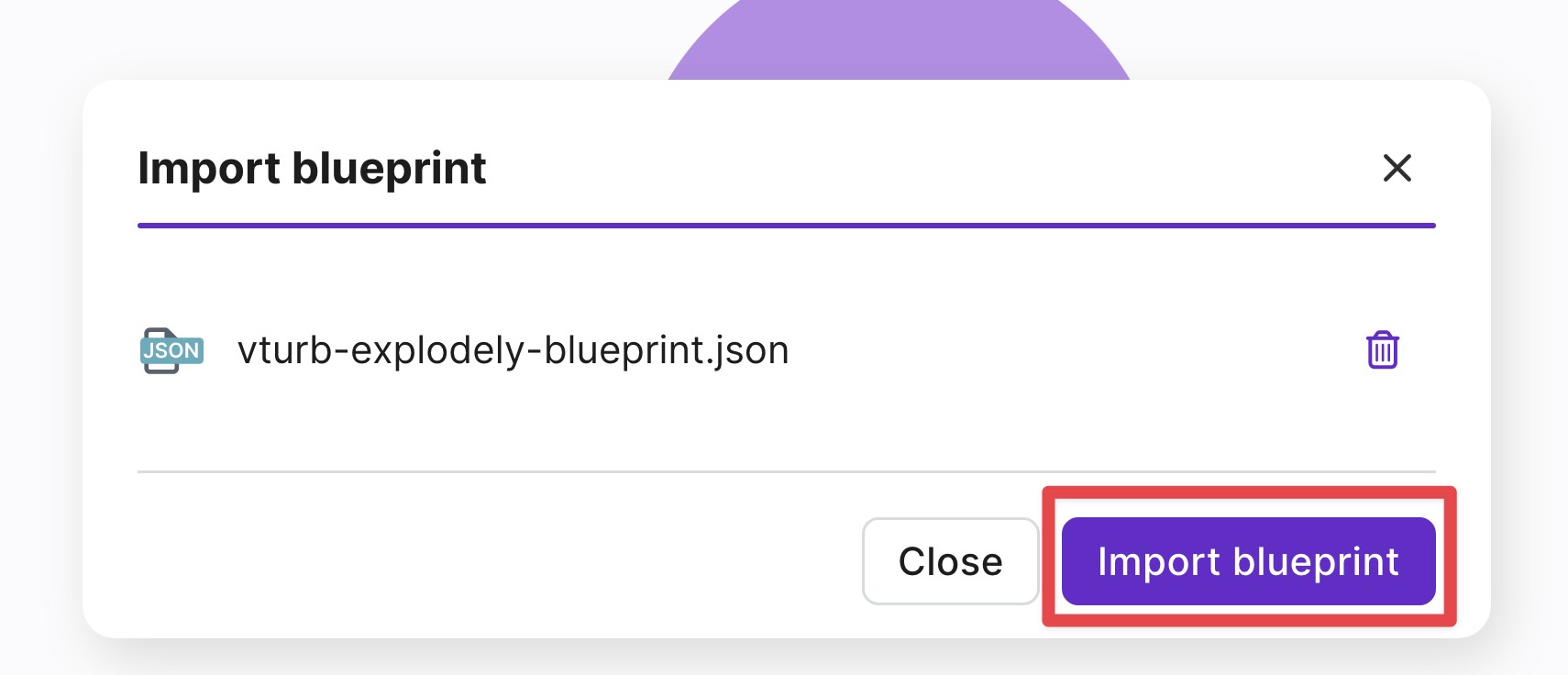
4. Choose the blueprint JSON file you downloaded and click Import Blueprint to complete the setup.
Step 2: Create a Webhook in Make.com
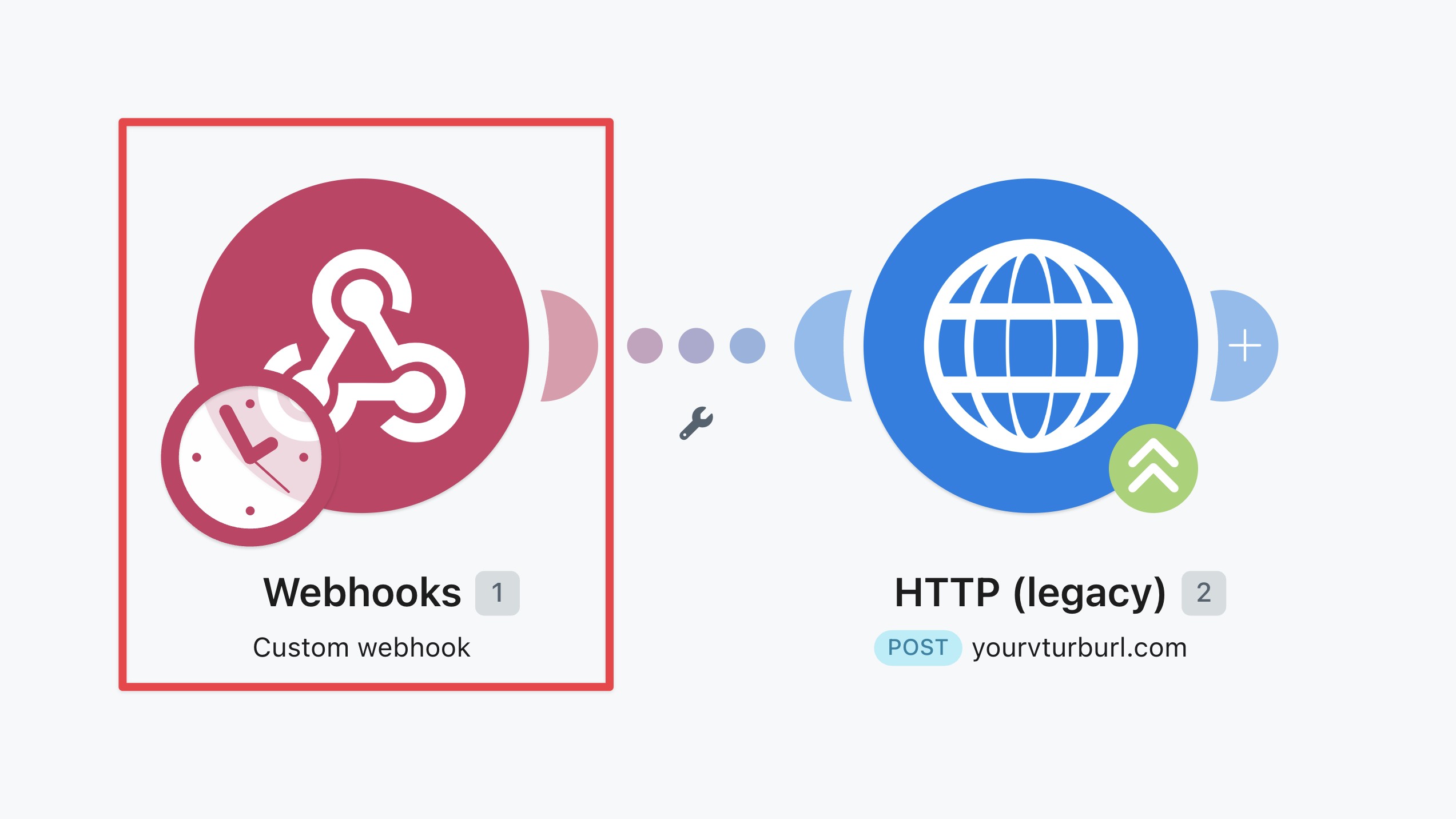
1. Open the Webhook module in your scenario
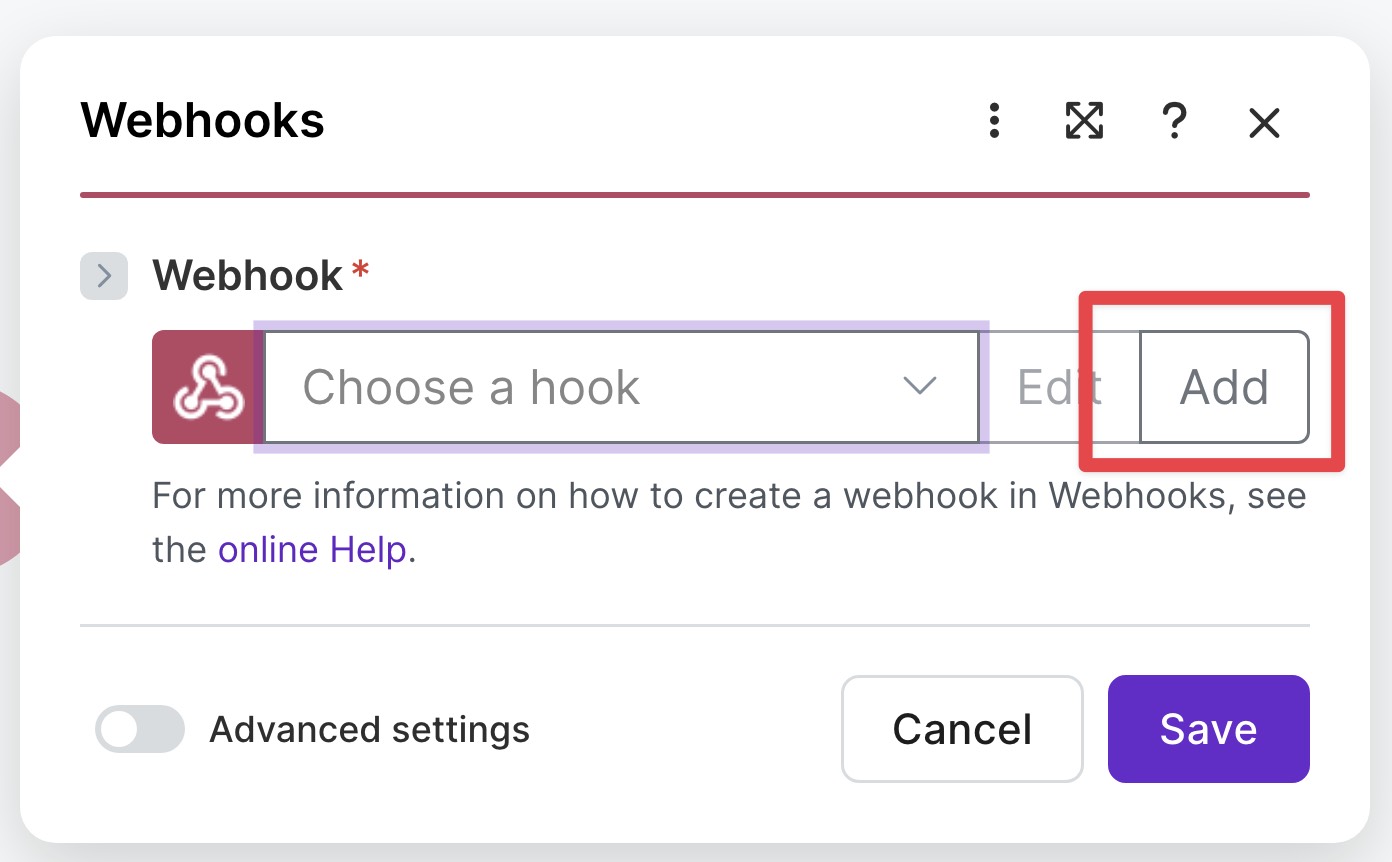
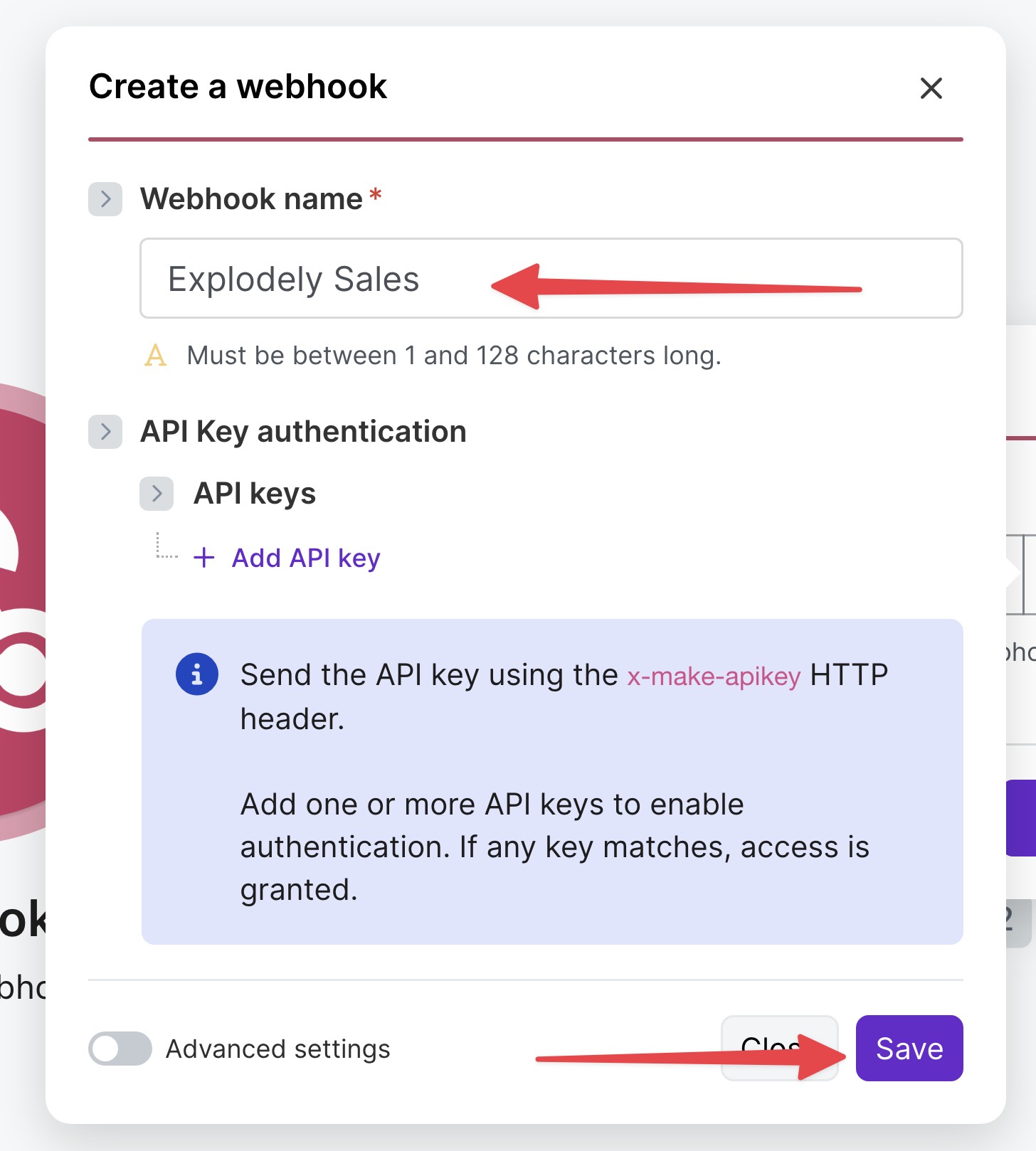
2. Click on Add.
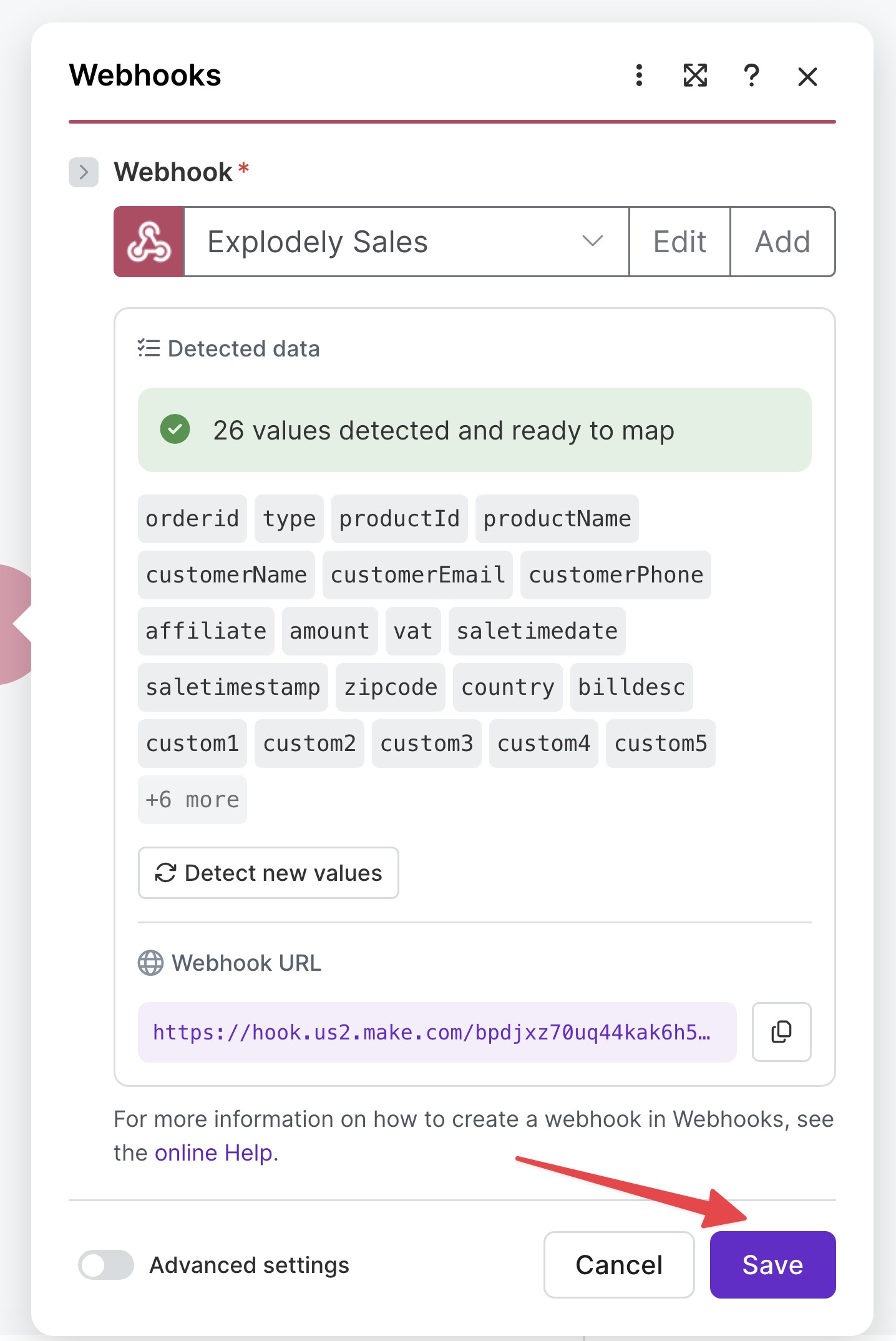
3. Name your webhook (e.g., Explodely Sales) and click Save.
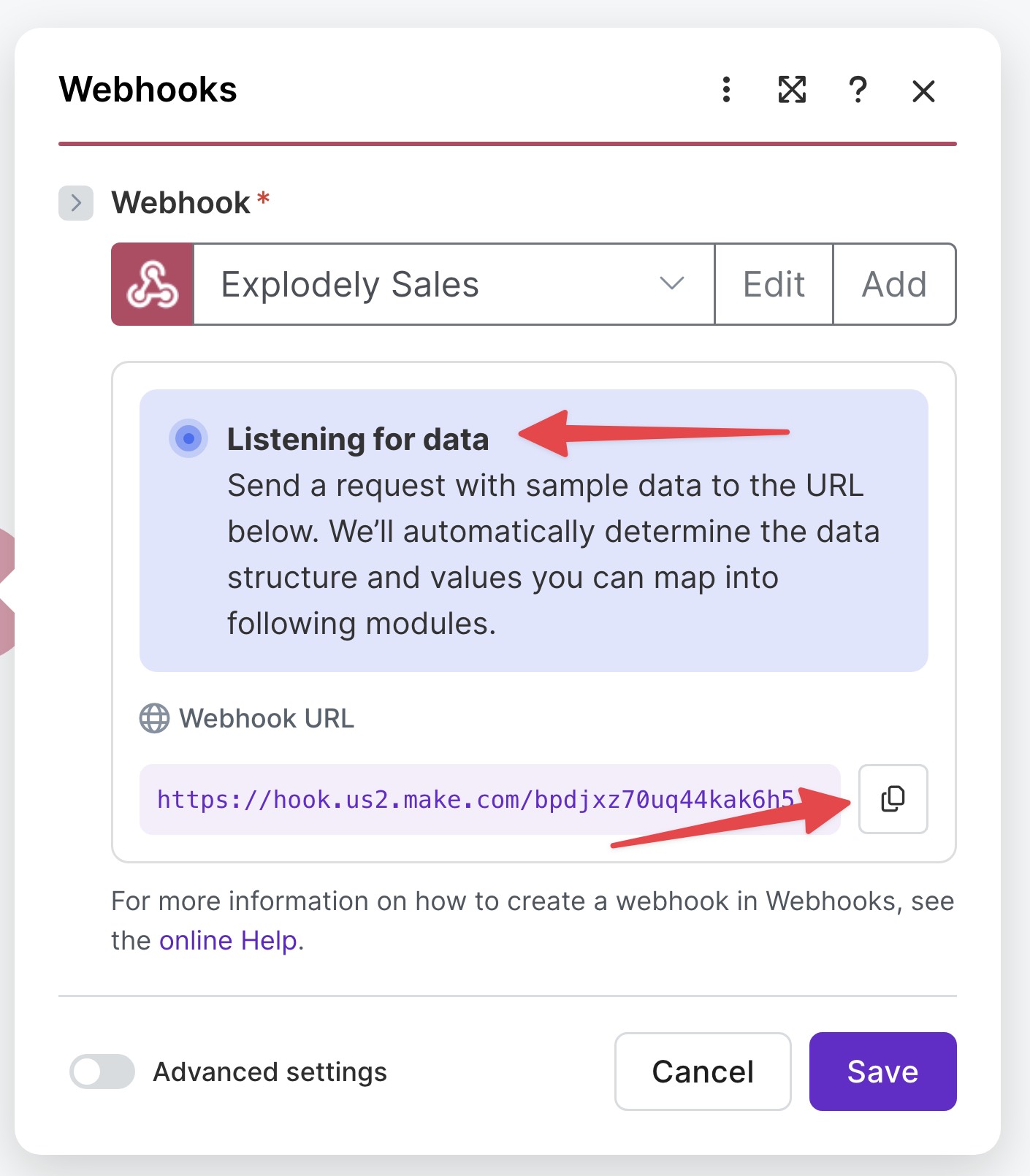
Once created, the webhook should say it's listening for data.
Now copy the Webhook URL as you’ll need this later.
Step 3: Connect Explodely with Make.com (Global IPN)
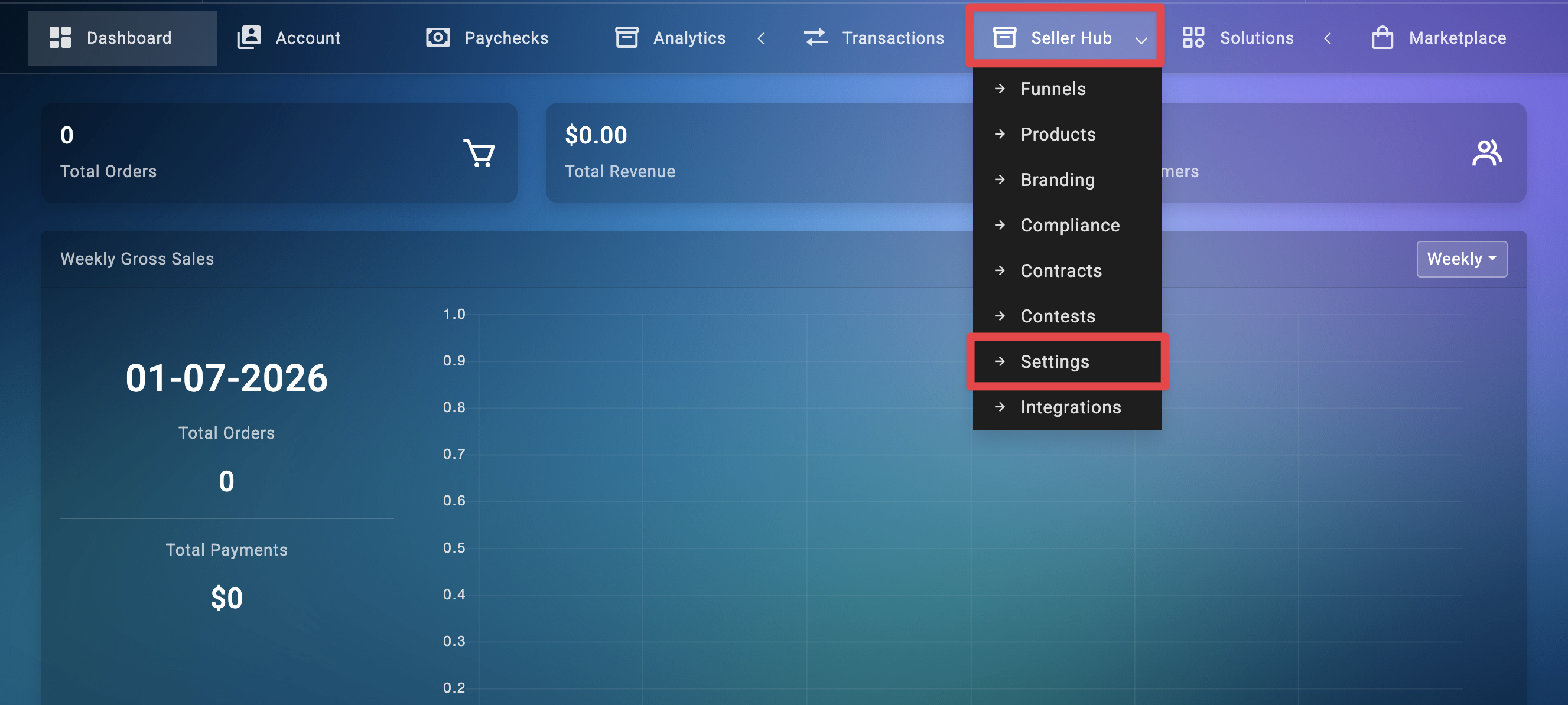
1. Log in to your Explodely Seller Account and go to Seller Hub → Settings.
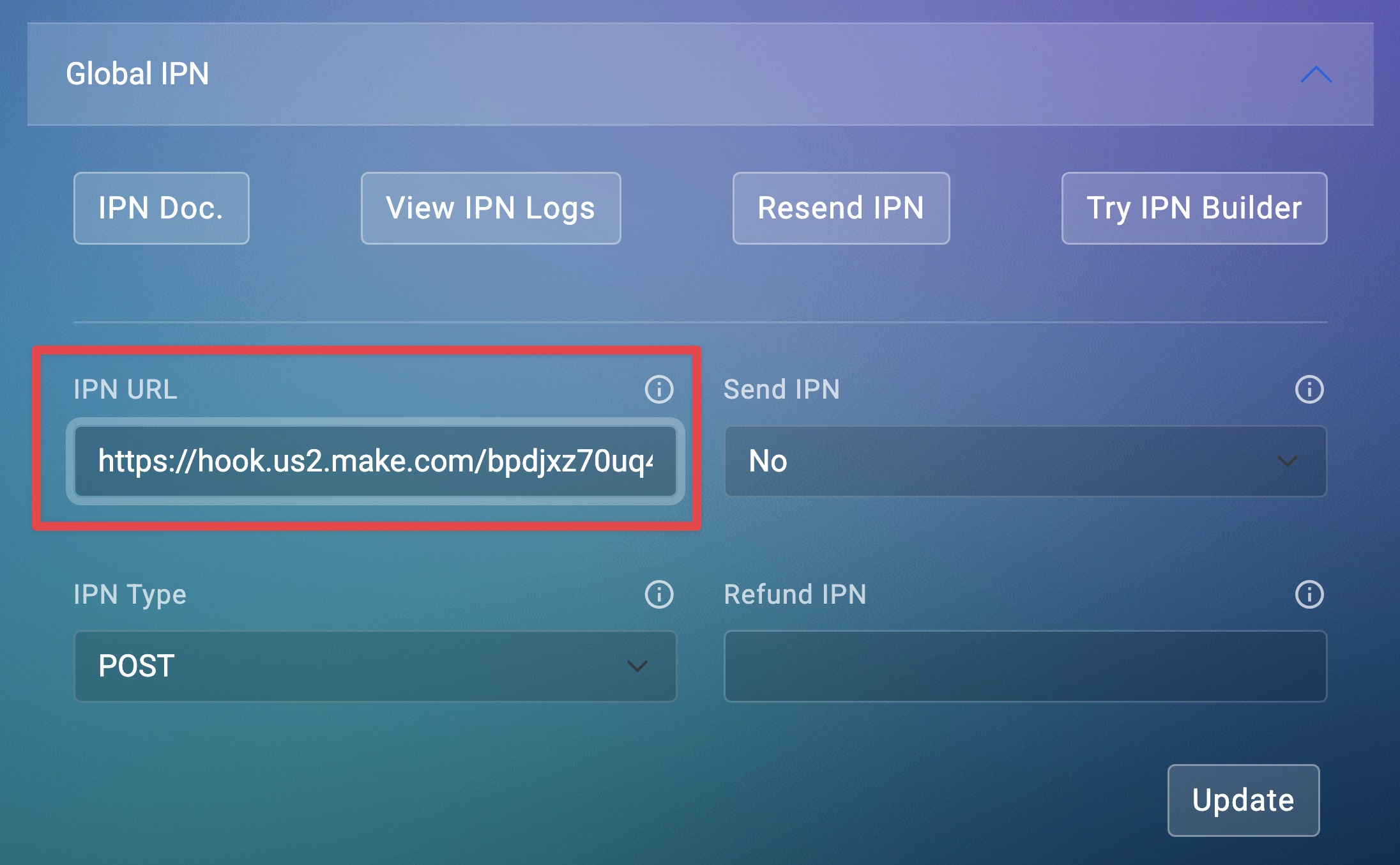
2. Then click on Global IPN under Developers section.
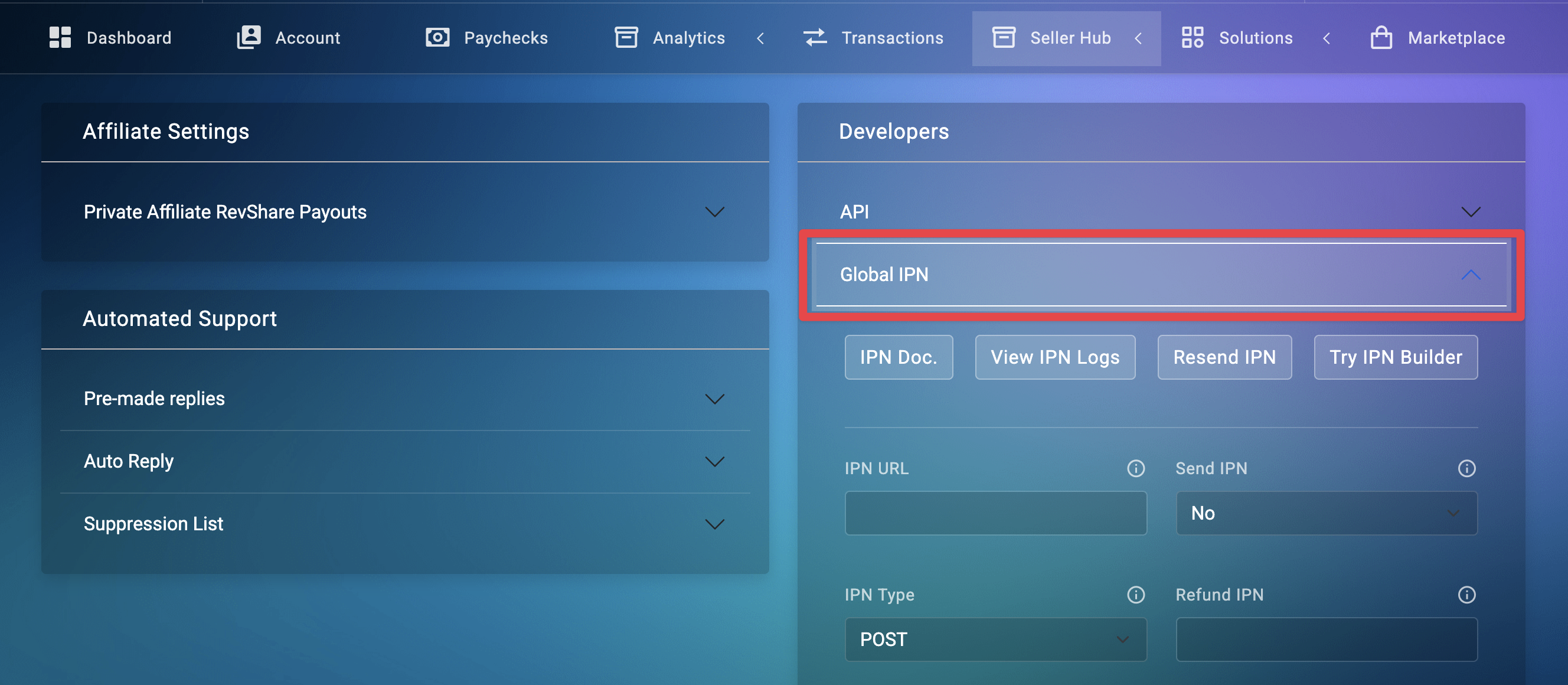
3. Paste your Make.com Webhook URL into the IPN URL field.
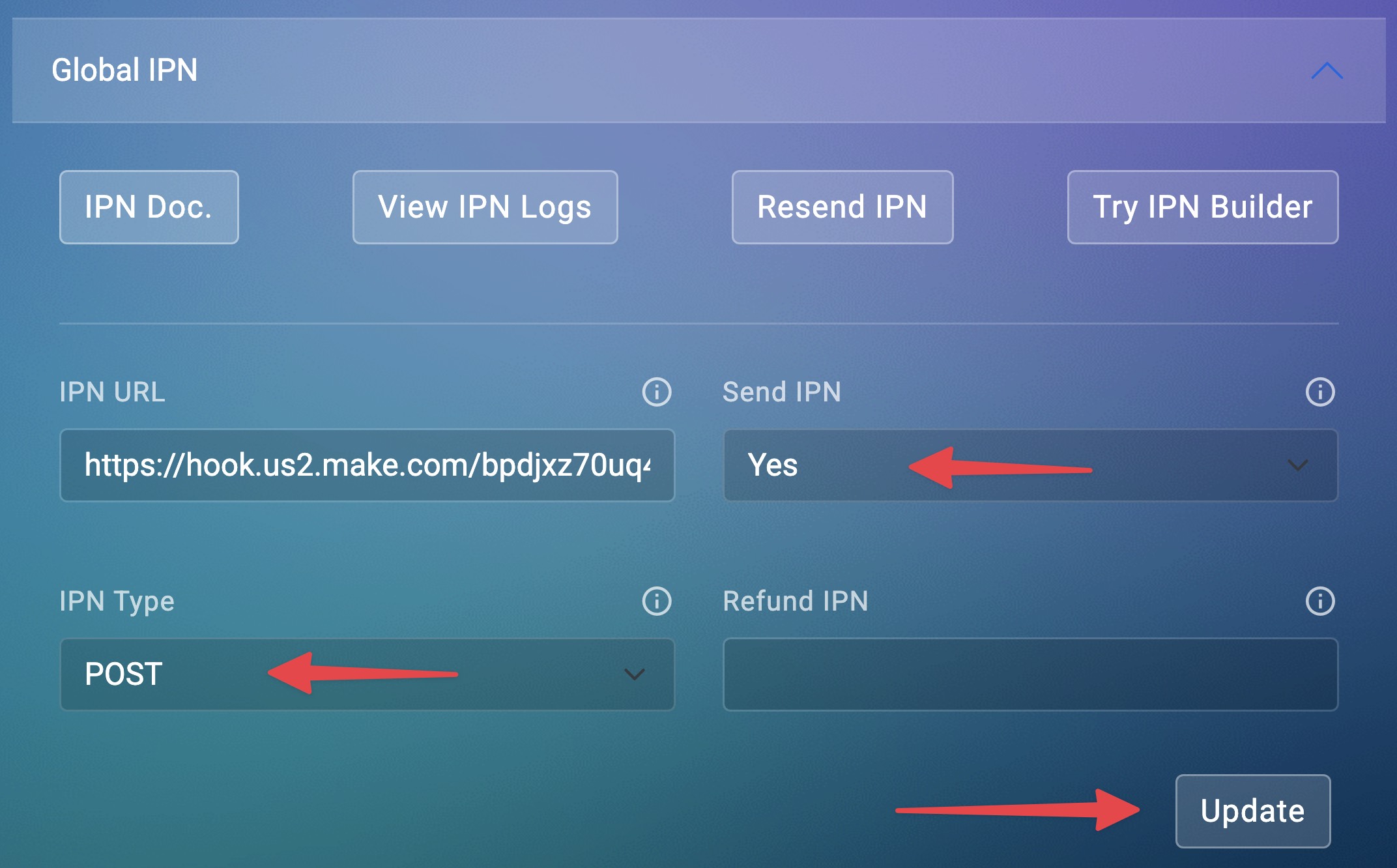
Set the following:
Send IPN = Yes
IPN Type = POST
4. Click Update to save your settings.
Step 4: Test the Integration
1. Make a test purchase using your payment link. Follow the article below to test:
2. After the purchase, go back to your Make.com scenario. Your webhook should now receive data.
3. Click Save in Make.com after confirming data is received
Step 5: Set Up VTurb Conversion Tracking
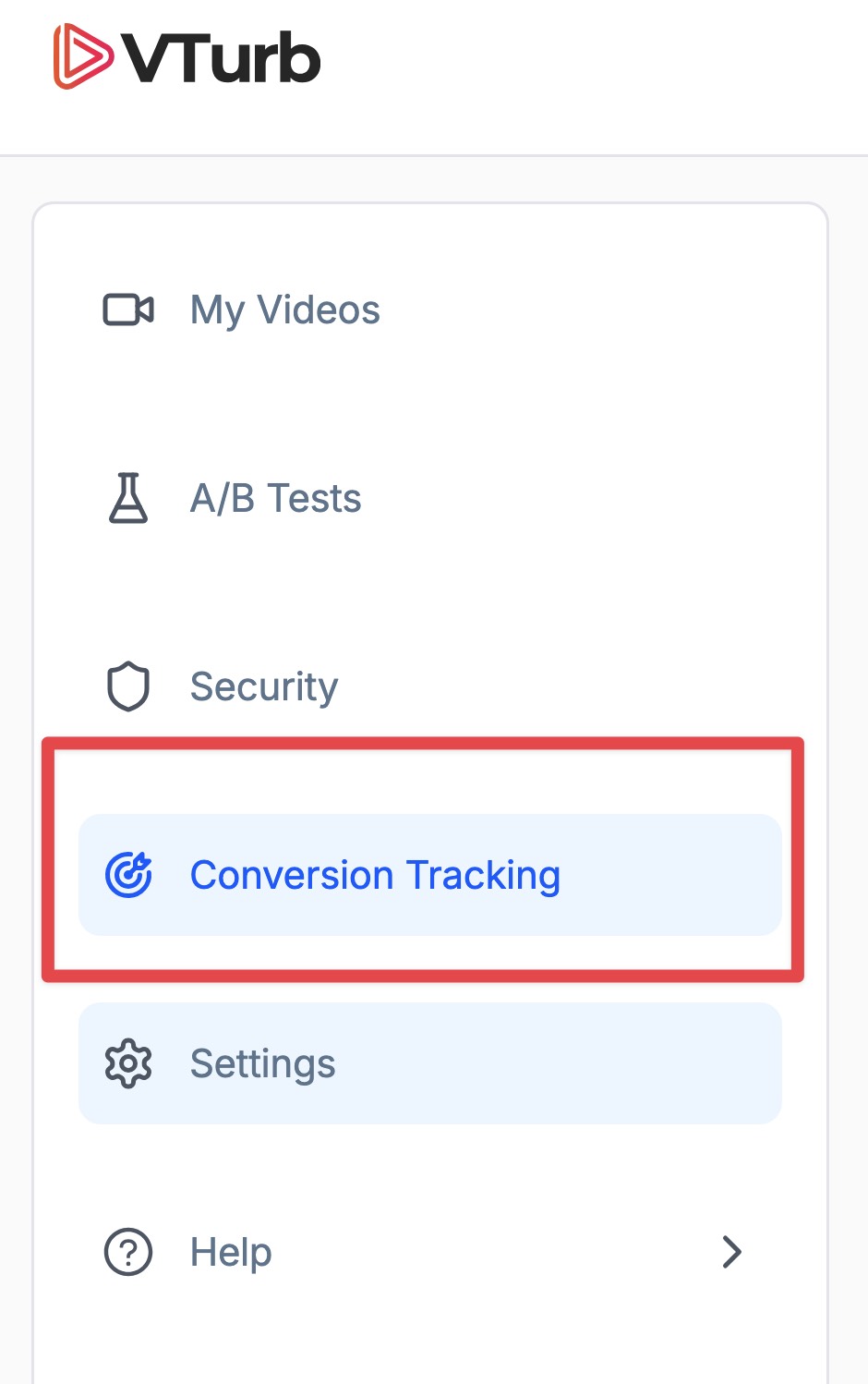
1. Log in to your VTurb account and click Conversion Tracking from the left menu.
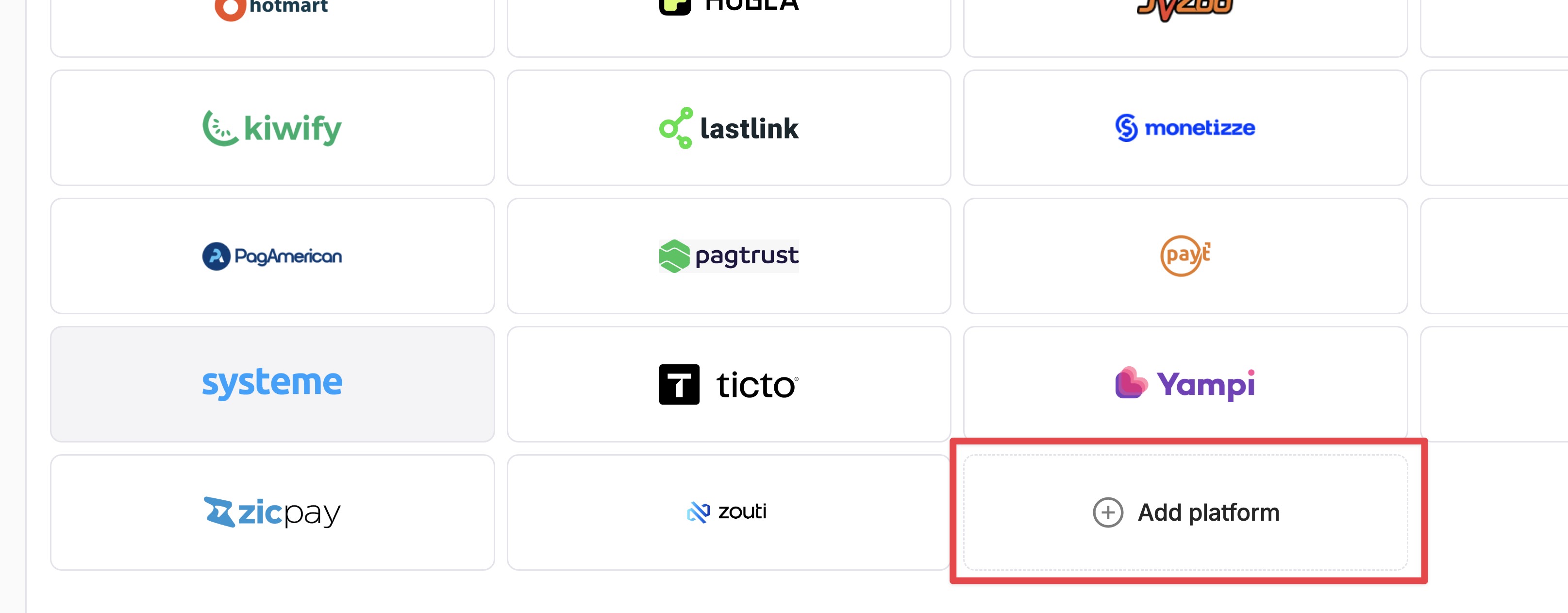
2. Scroll down and click Add Platform.
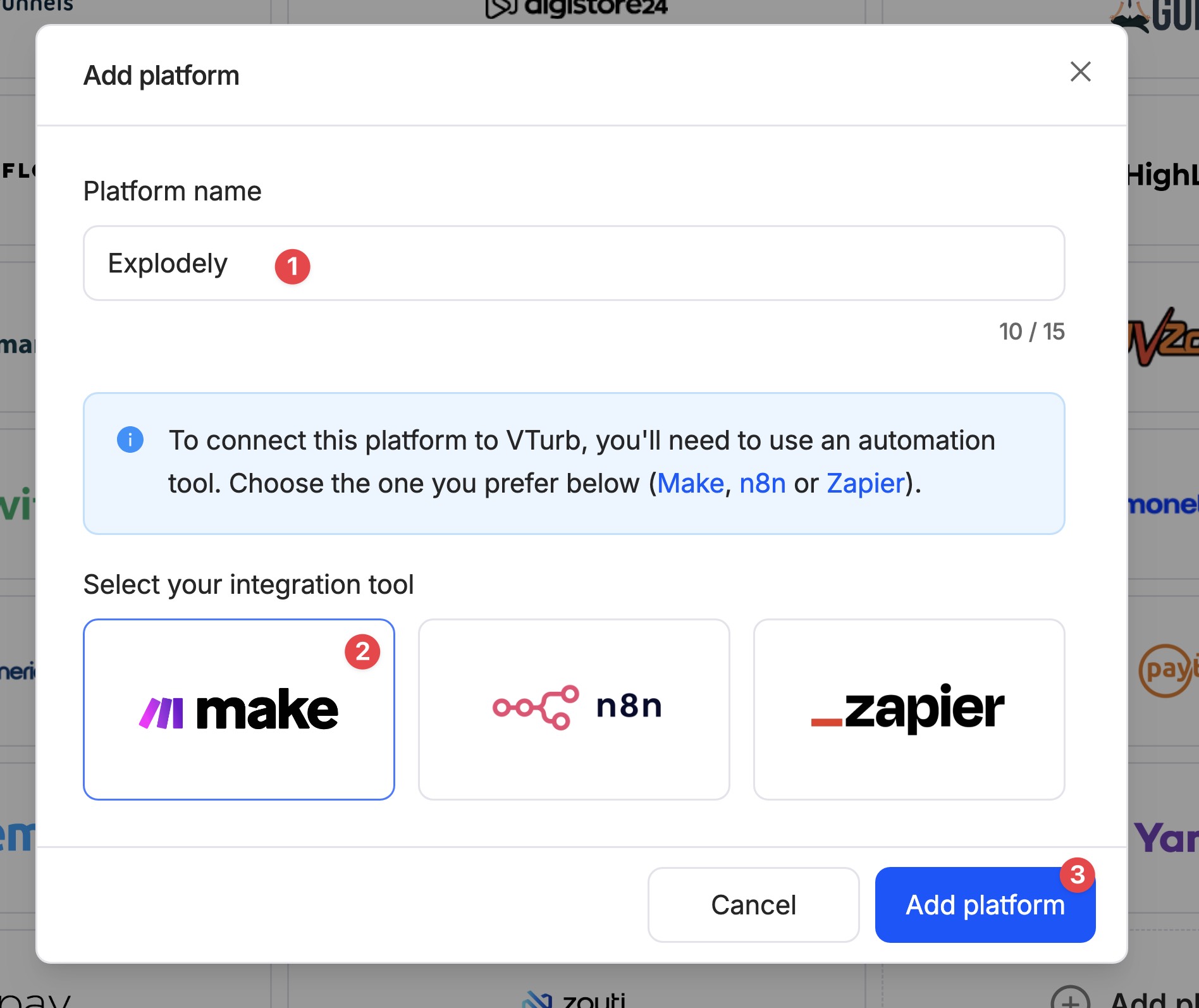
3. Type "Explodely" as the name, choose Make, and click Add Platform.
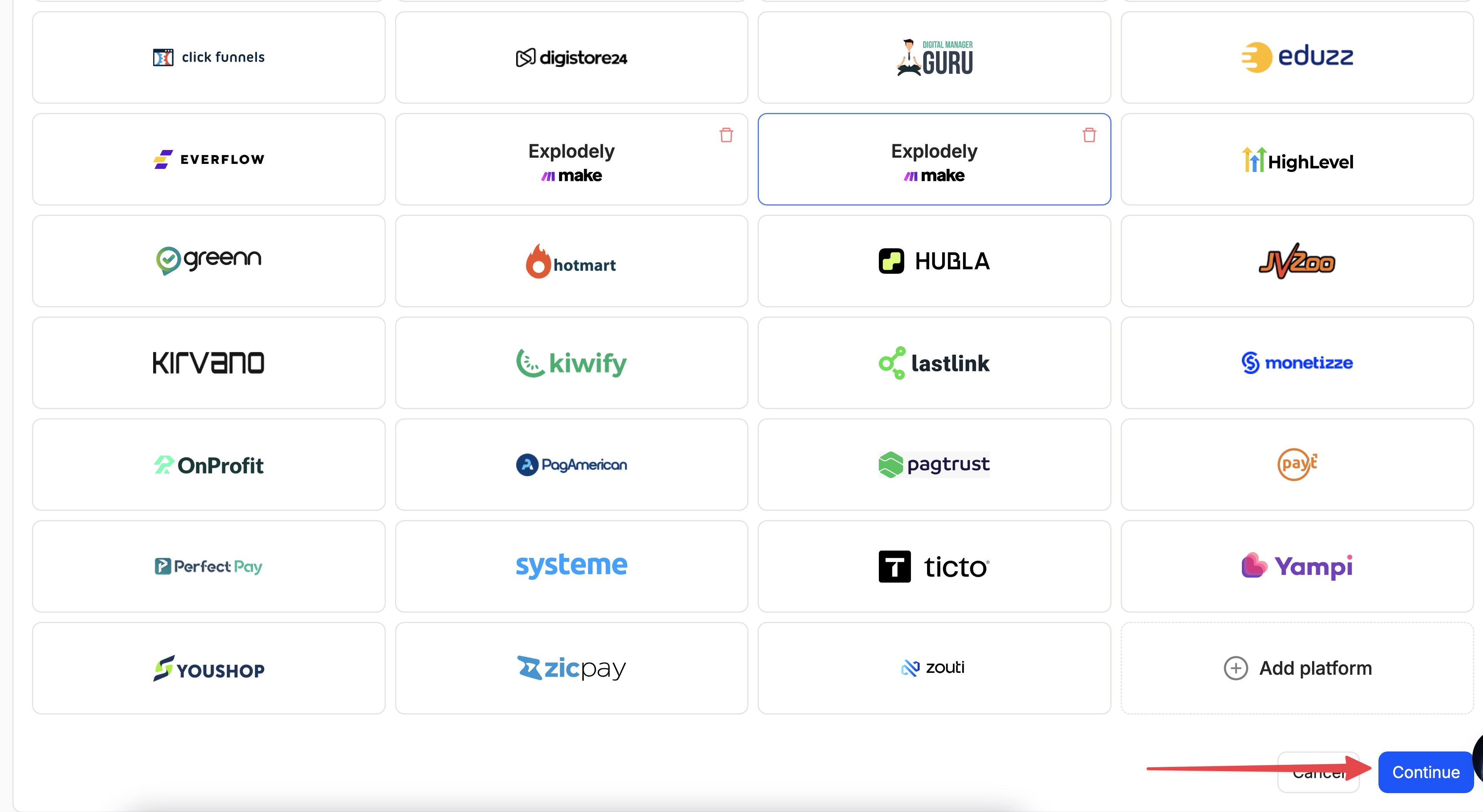
4. Click Continue.
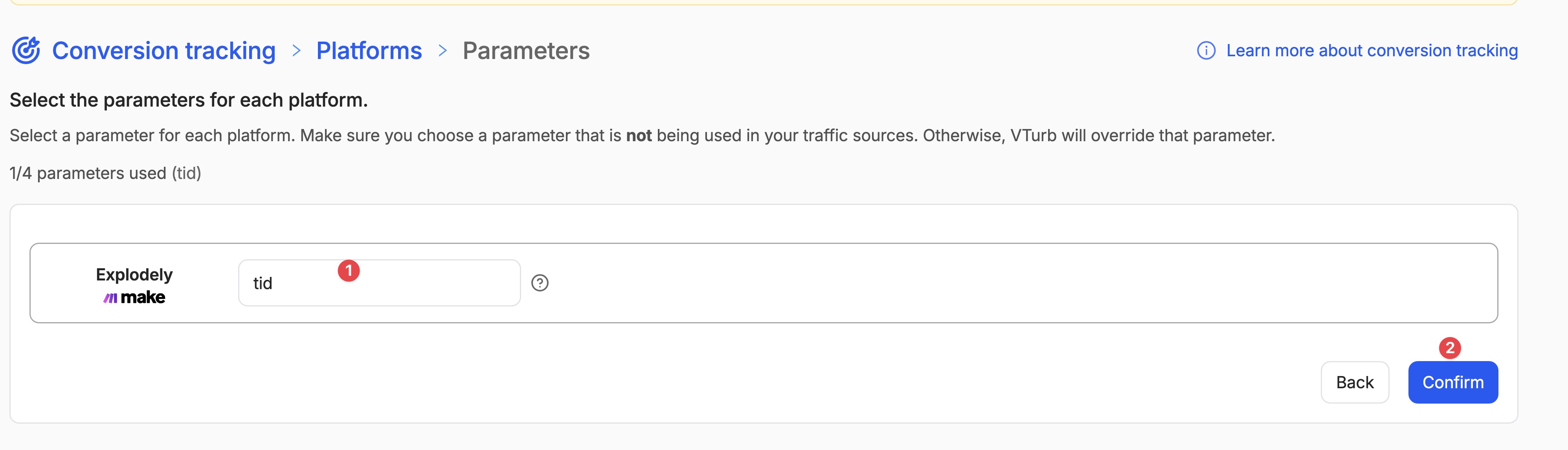
5. Enter tid in the required field and click Confirm.
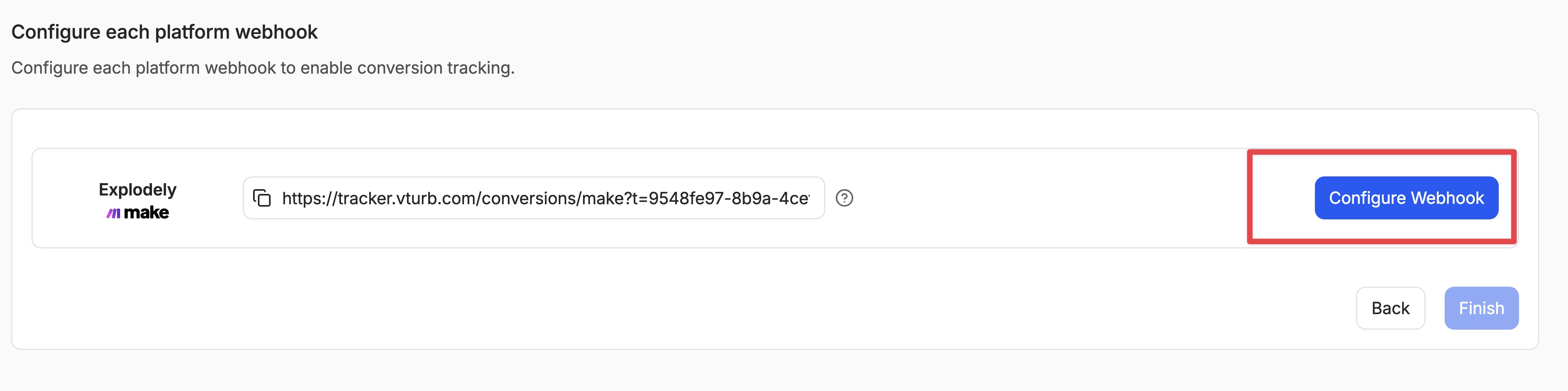
6. Click Configure Webhook:
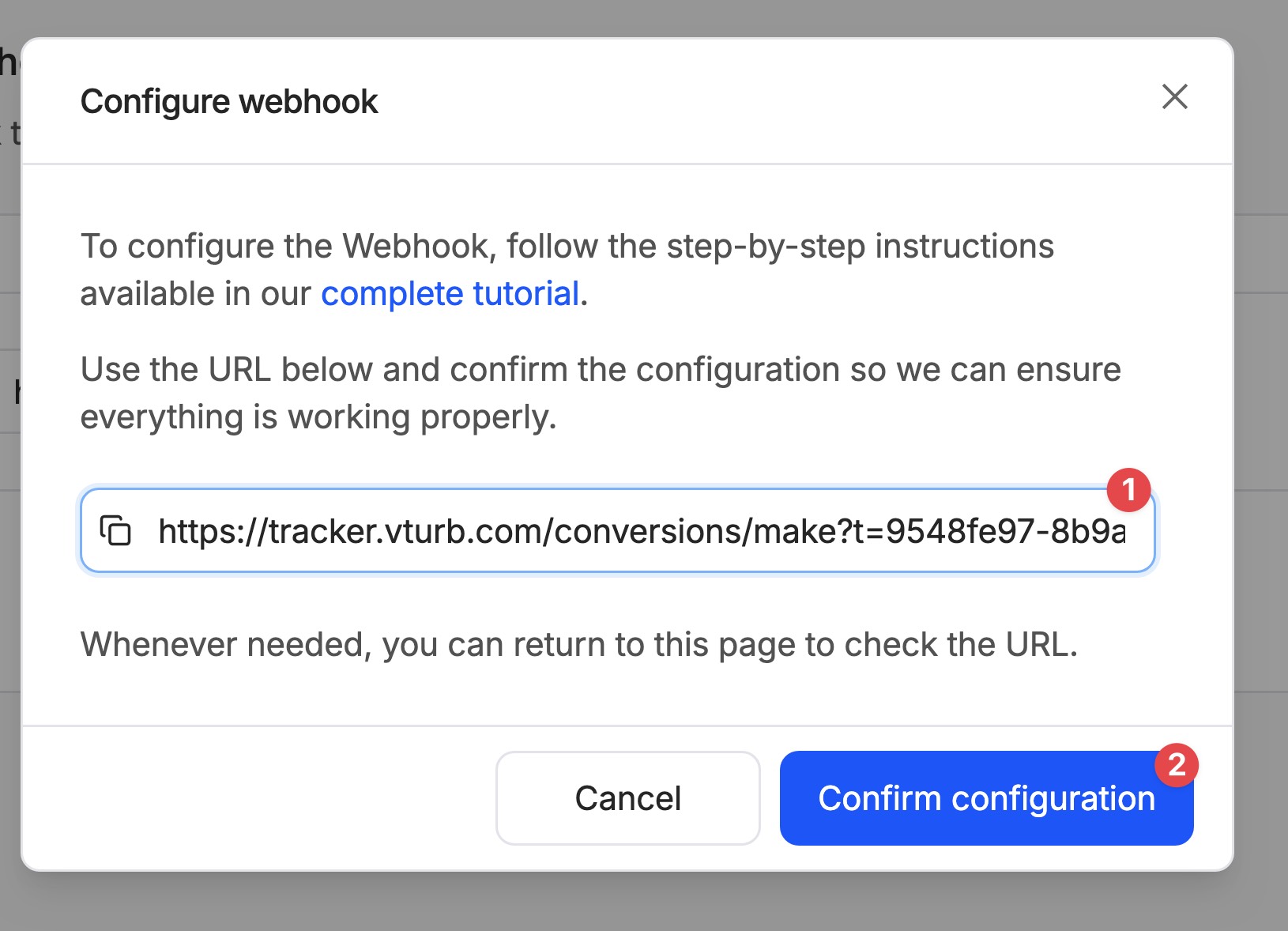
7. Copy the URL, and then click Confirm configuration:
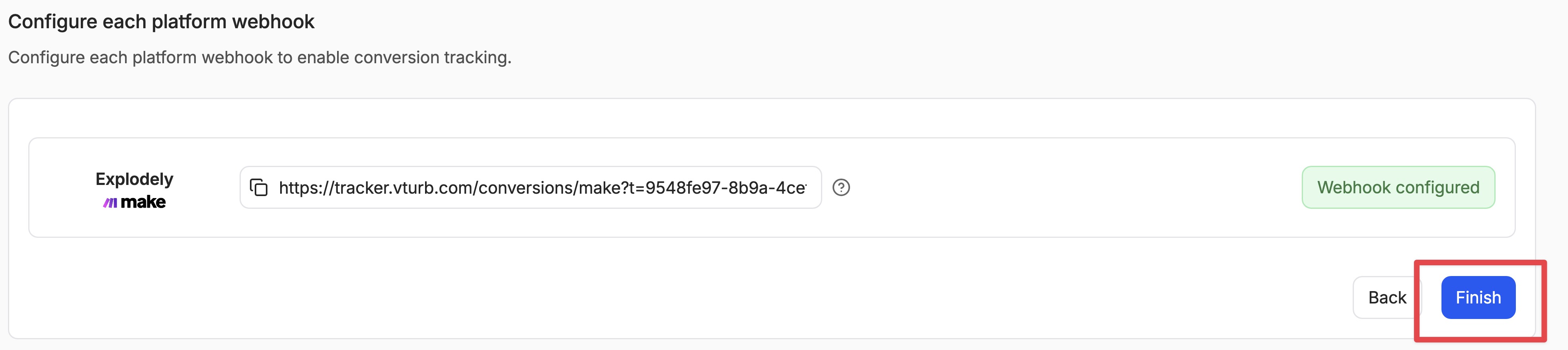
8. Finally, click on Finish:
Step 6: Finalize Setup in Make.com
1. In Make.com, click on the HTTP (Legacy) module.
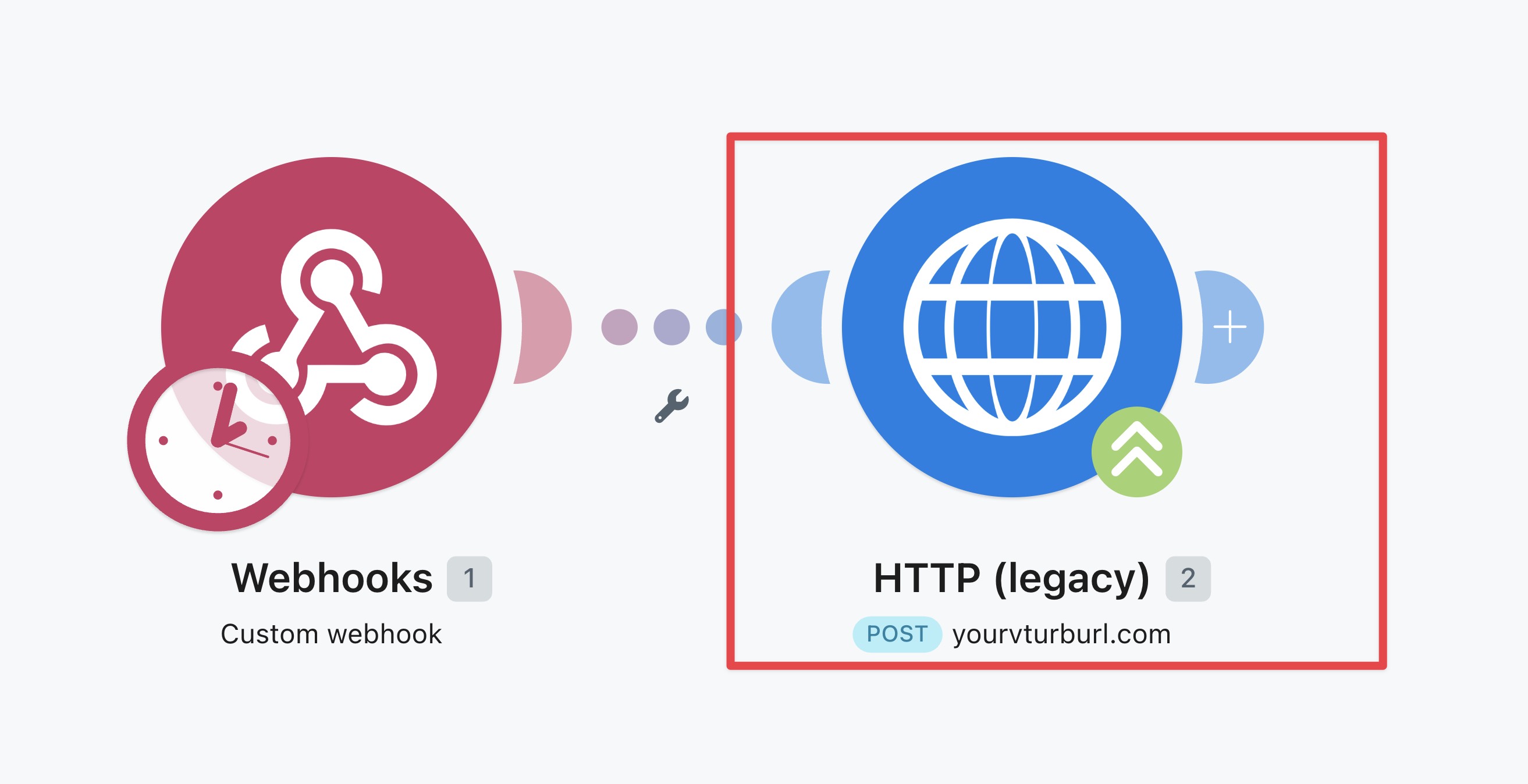
2. Paste your VTurb webhook URL into the URL field and click Save.
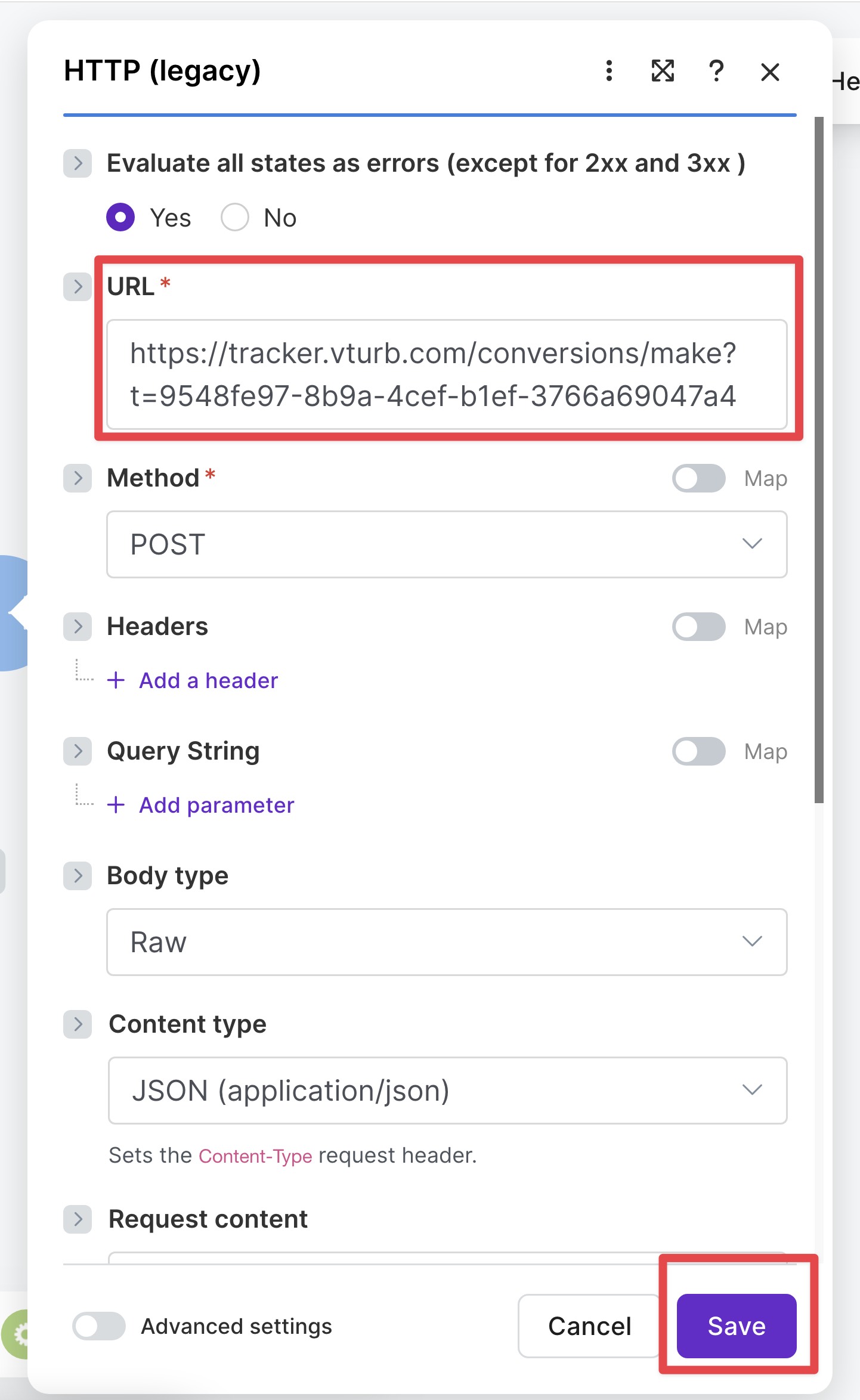
Final Make.com Setup:
* Click the **Save icon** at the bottom
3. At the bottom, turn the toggle on:

4. Choose Immediately as the frequency, and click Save.
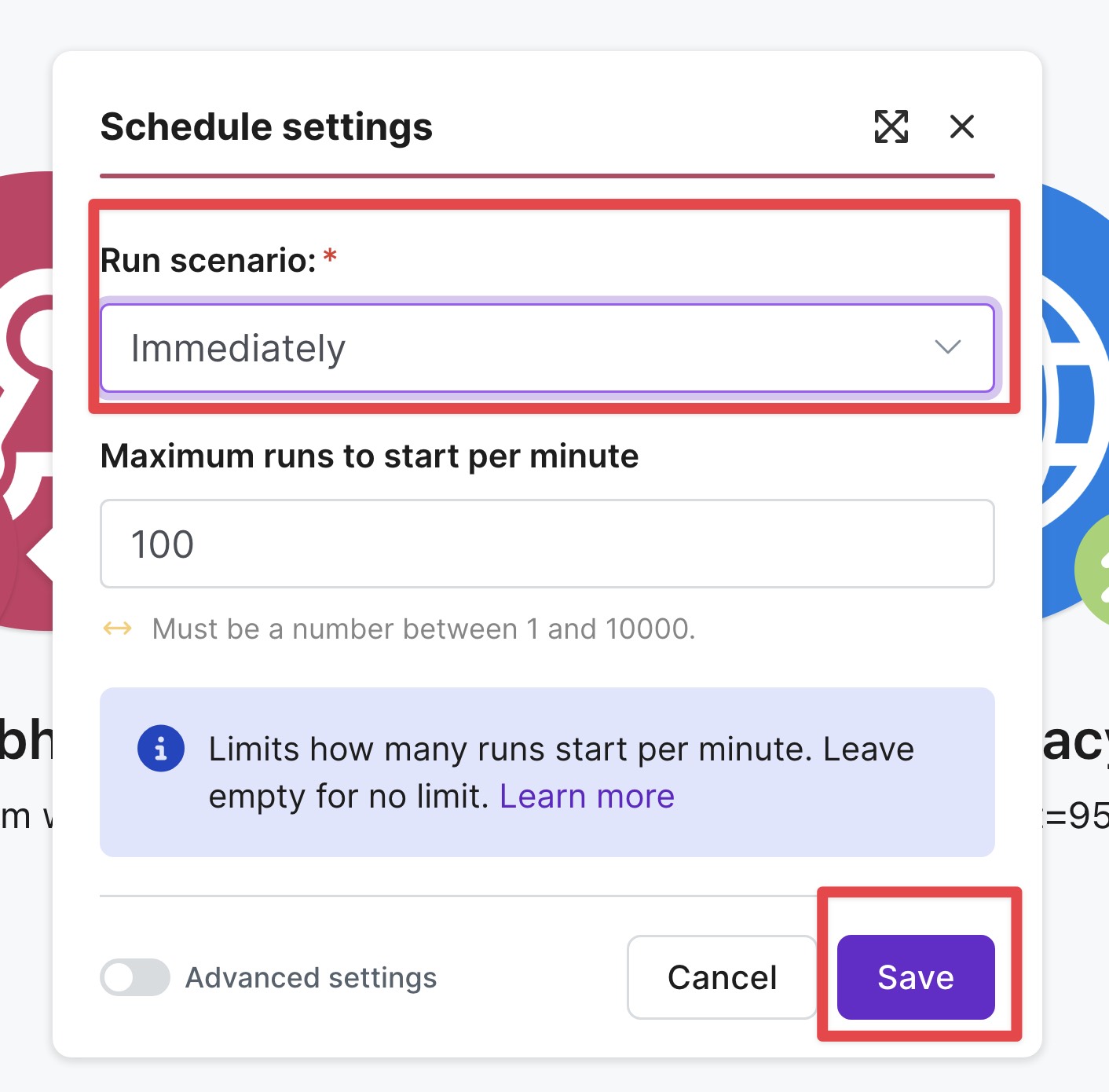
5. Finally, click the Save icon at the bottom.
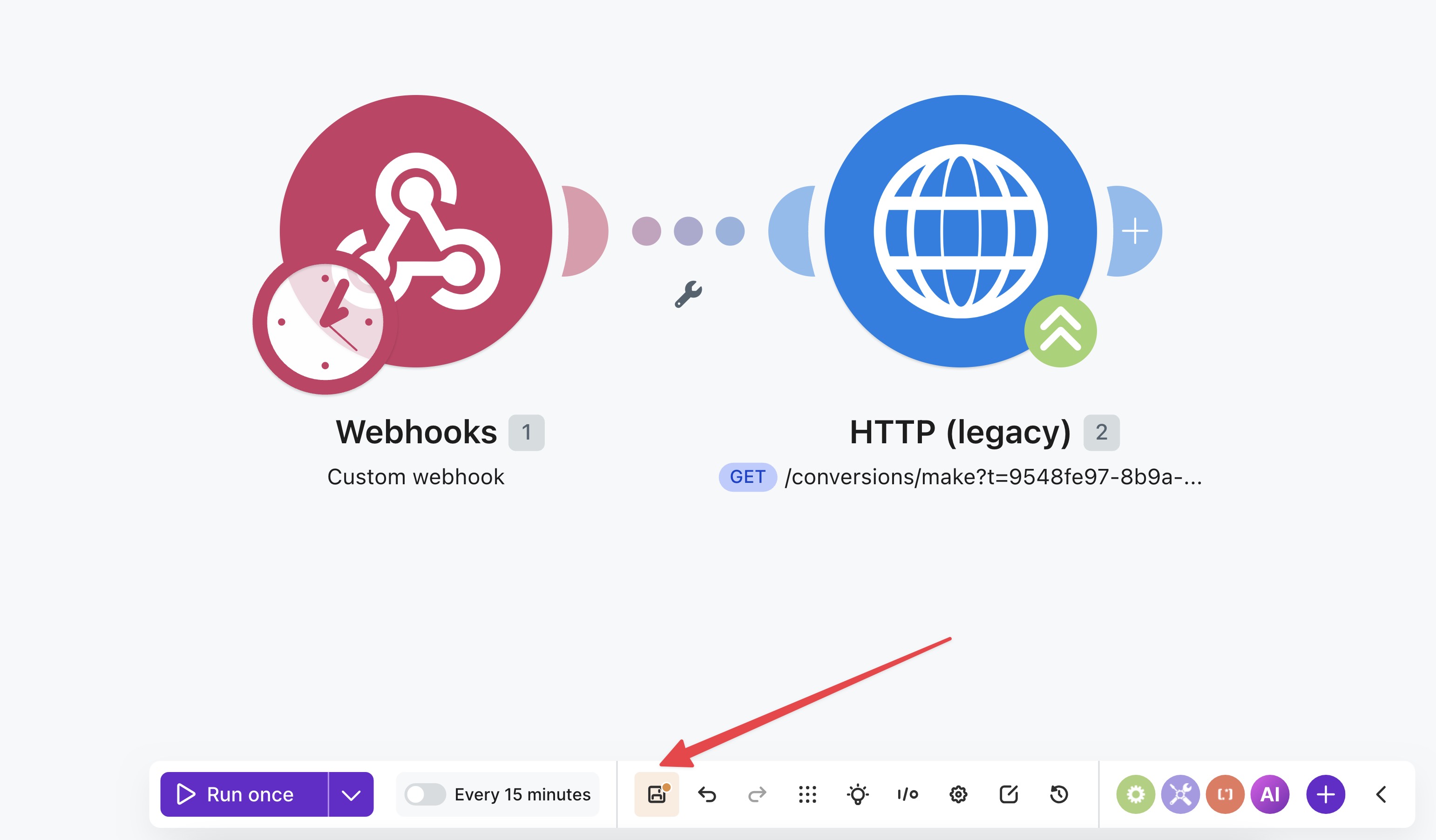
Your integration is now complete. Explodely will send transaction data to Make.com, which will forward the data to VTurb. VTurb will then track conversions automatically. This setup helps you automate tracking and improve visibility into your funnel performance.
Please reach out to us if you have any questions or concerns at sellers@explodely.com.